Jira time tracker for Windows: what a native tray timer changes
Tempo and Clockwork live in a browser tab, and generic trackers keep hours in their cloud. What a native Windows Jira timer with direct worklogs looks like.
On this page
A huge share of Jira work happens on Windows desks, and yet “Jira time tracker for Windows” mostly returns tools that treat the OS as an afterthought. Tempo and Clockwork, the biggest names in the category, run inside Jira in a browser tab and ship no desktop timer at all. Toggl and Clockify ship real Windows apps but treat Jira as a sync destination: your hours accumulate in their workspace, one bridge away from the issue your manager actually reads.
Planim Time takes the other route: a native Windows app whose only database of record is Jira itself. The timer lives behind a system tray icon, entries are stored locally while you work, and a stopped timer turns into an ordinary Jira worklog, correct start time included, written as you. No parallel timesheet to reconcile, and nothing for a Jira admin to install.
Not a second-class port
A fair question for any cross-platform tracker is which platform gets the real product. Our answer is that the Windows build comes from the same Rust codebase as the Mac one, feature for feature: two-way worklog sync, JQL-driven issue search, the calendar and timesheet views, offline queueing, and idle detection all included. The one visible difference runs against Windows, and it is worth knowing upfront: a tray icon cannot display text, so where macOS ticks PAY-214 00:47:12 next to the clock, Windows shows the state on the icon and the live count in the app window. That is an OS limit, not a settings toggle, so plan around it.
Idle detection is worth singling out, because on Windows it is fully native. GetLastInputInfo hands the app the tick of your last keyboard or mouse input; subtracting it from GetTickCount gives the idle seconds, which get weighed against your threshold (5 minutes to an hour, 15 by default). Past it, the app asks what to do with the gap: keep it, subtract it, or stop the timer retroactively at the moment you left. A lunch that started as “just checking the kitchen” stops inflating your worklog. Sleep behaves the same way, because the pause surfaces as a gap on wake. One detail for the systems-minded: GetTickCount wraps every 49.7 days, so that subtraction is written with wrapping arithmetic; an uptime-proud Windows box does not get to confuse the timer. The full design is in the idle detection post; it ships as part of Pro.
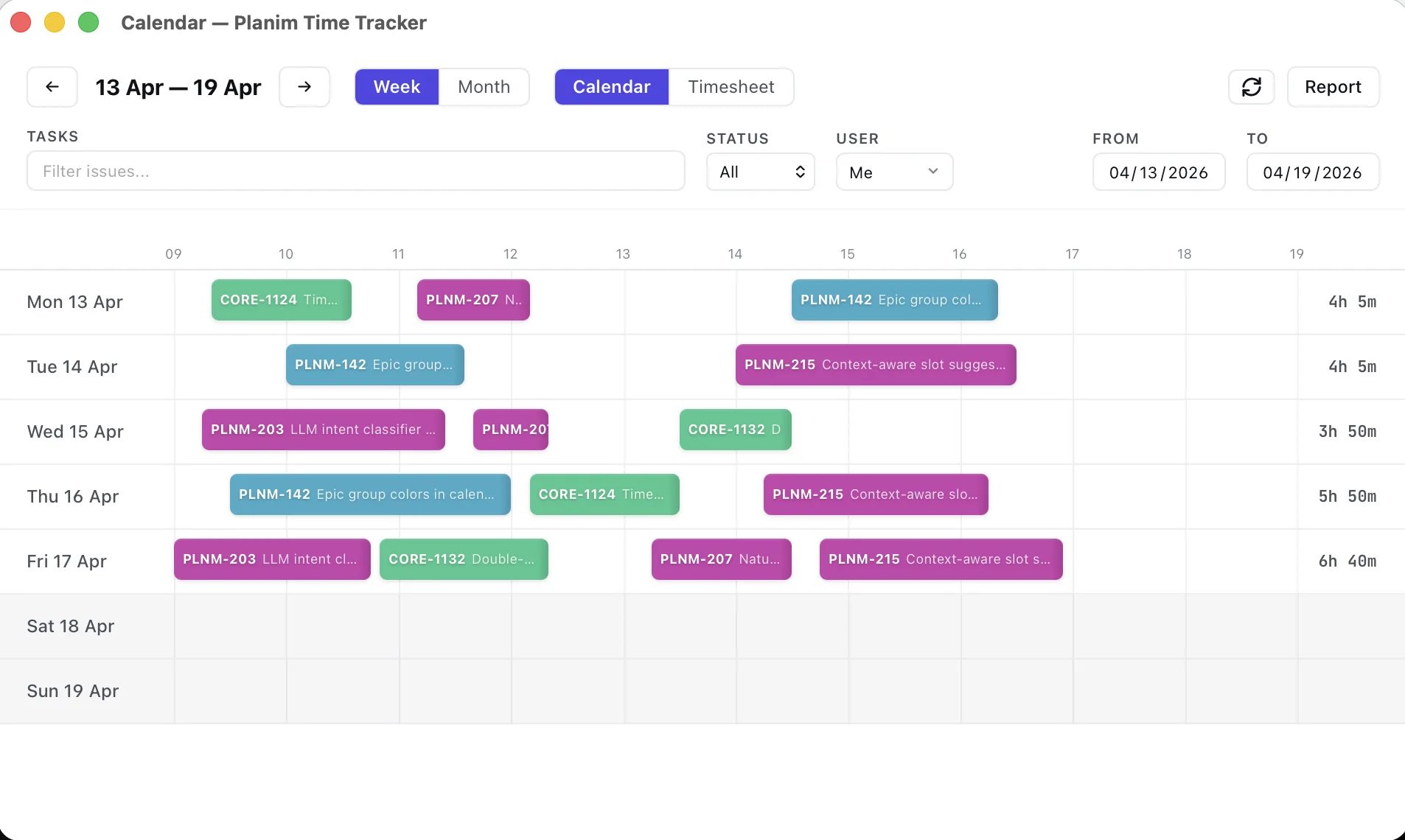
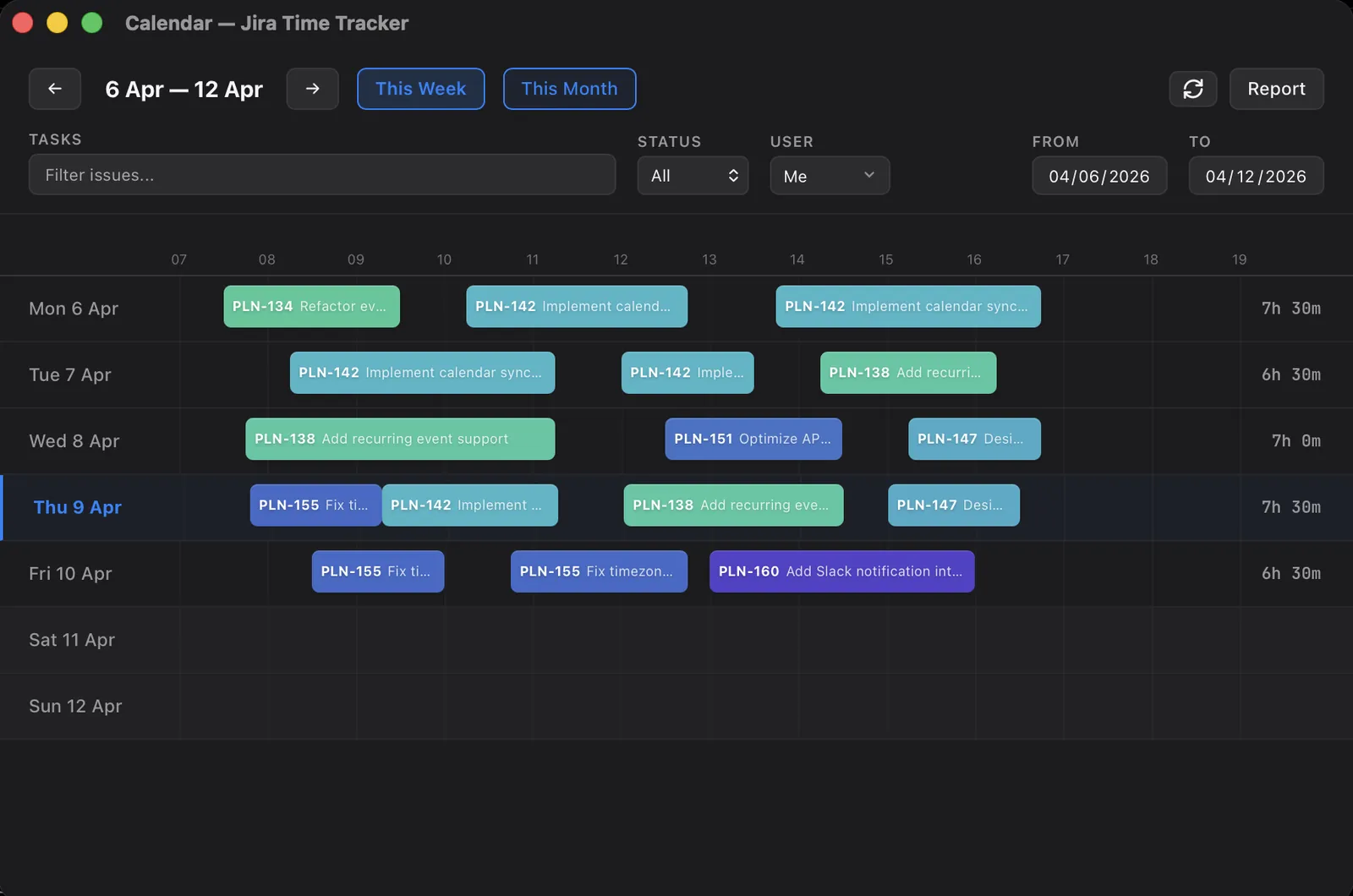
The rest of the daily loop is deliberately boring. Click the tray icon, pick an issue through the JQL search, work, stop. Open the window when you want the week as a calendar of draggable worklog blocks, including entries you logged from Jira itself, or as a timesheet grid when you think in totals.
The Windows specifics
Credentials live in Windows Credential Manager, the OS vault, rather than in a file under AppData. You sign in with Atlassian. Who stores what where, across the tracker market, is a question with surprisingly varied answers, and we’ve mapped them.
Launch at login goes through the per-user registry Run key, the mechanism Task Manager’s Startup tab shows and controls, so you can see and disable the entry with standard Windows tools. Nothing asks for administrator rights to register it, and we wrote the registration by hand after the stock autostart crate turned out to paste the executable path into the Run command unquoted; one space in an install path and launch-at-login dies without a word.
Being offline changes nothing. Timer state and unpushed entries are rows in a local SQLite file, so a VPN drop or an Atlassian incident cannot interrupt a measurement in progress; whatever accumulated goes out once Jira answers again. If you want proof before trust, the offline post includes a walkthrough you can reproduce.
And because Windows is the platform where monitoring software is most at home, it is worth saying plainly: there are no screenshots, no keystroke counting, and no activity scores in Planim Time, on any platform. The only number idle detection ever reads is seconds since last input, compared against one threshold. Why we think surveillance and time tracking should stay separate is its own post.
What the others offer on Windows
Tempo and Clockwork stay in the browser: close the Jira tab or restart the browser and no timer is running anywhere on the machine. Clockwork’s timer only exists while a signed-in Jira tab does. Tempo automates differently, collecting calendar, IDE, and GitHub activity into cards you approve later, so the desktop still never hosts a live timer. Central install and manager-facing timesheets are the trade they offer for living inside the tab.
Toggl and Clockify do ship native Windows apps, window- and keyword-rule autotracking included in Toggl’s case. The hours all land in their clouds first, though. Toggl’s own docs describe Jira Sync as one-way, from Jira into Toggl, with write-back requiring a third-party Marketplace app; Clockify’s two-way sync runs through an admin-installed Jira app and keeps a parallel copy of every entry. Hubstaff has a native Windows client too, and brings the screenshot-and-activity-score model along with it. If Jira is the system of record for your team’s time, each of these adds a second system to keep honest.
The platform picture, in short: in-Jira plugins have no Windows presence at all, and the trackers with a Windows presence make Jira a sync target rather than the source of truth. The full pricing and feature rundown lives in the engineering-team shortlist and the comparison pages linked above; this post is about where your hours physically live while you work.
One tray click away
Two honest carve-outs: teams that never leave the Jira tab are the in-Jira plugins’ home turf, and phones are not our territory. For a Windows machine where the work happens while Jira holds the hours, the setup is a two-minute affair: download Planim Time and stop your first timer straight into a Jira worklog. The same tracker ships for macOS and Linux; a mixed team gets one workflow on every desk.