Idle detection lands in our Jira time tracker: keep, subtract, or stop
Planim Time 0.4 adds idle detection to our native Jira time tracker: keep, subtract, or stop the gap when you step away. Plus one-click Atlassian sign-in.
On this page
Planim Time 0.4 adds idle detection to our native Jira time tracker. Walk away with the timer running, or close the laptop lid for the night, and when you come back the app asks what to do with the gap: keep the time, subtract it and keep working, or stop the timer retroactively at the moment you left. Nothing is decided for you and nothing is thrown away silently. It works on macOS and Windows, the threshold is configurable from 5 minutes to 1 hour, and it ships alongside the other headline 0.4 feature, signing in to Jira with your Atlassian account instead of pasting an API token.
That is the announcement. The rest of this post is the part we would want to read as users of any tracker: why a timer needs this at all, and the design decisions that separate an idle prompt you trust from one you disable in the first week.
The overnight worklog
A timer does not measure work. It measures the distance between the moment you pressed start and the moment you pressed stop, and it is exactly as accurate as your memory for pressing stop. Most days those two things line up. Then a hallway question turns into lunch, a school pickup runs long, or you close Friday’s last ticket in your head but not in the tracker, and on Monday there is a 64-hour worklog sitting on a Jira issue.
Worklogs in Jira are not private notes. They land on the issue for the whole project to read, they feed time reports, sometimes invoices. An absurd entry is embarrassing; a plausible-but-wrong one is worse, because nobody catches it. And editing logged hours after the fact is exactly the kind of chore that makes people give up on tracking altogether. The cheapest place to fix a bad worklog is before it exists.
Three answers, because there are three situations
When the machine sees no input past your threshold and you come back, Planim Time asks one question with three answers.
| You pick | When it fits | What ends up in Jira |
|---|---|---|
| Keep the time | You were working, just not typing: whiteboard, paper, a call | The timer never noticed; one continuous worklog |
| Subtract and keep working | Coffee, lunch, an errand in the middle of a work block | The work before the break stays as its own worklog, then a gap, then a fresh one |
| Stop when I left | You were done and forgot the timer | The timer ends retroactively at the moment the input stopped |
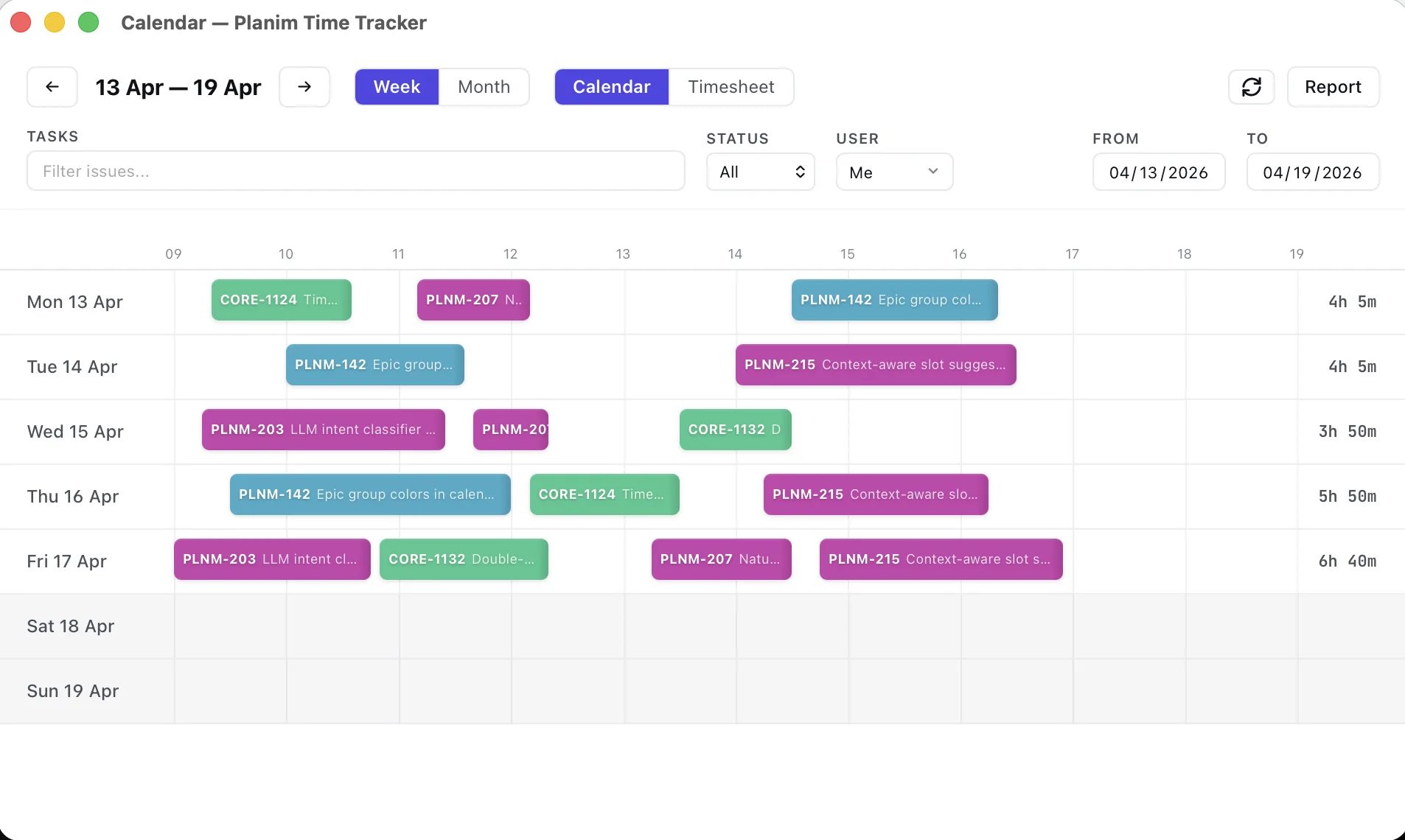
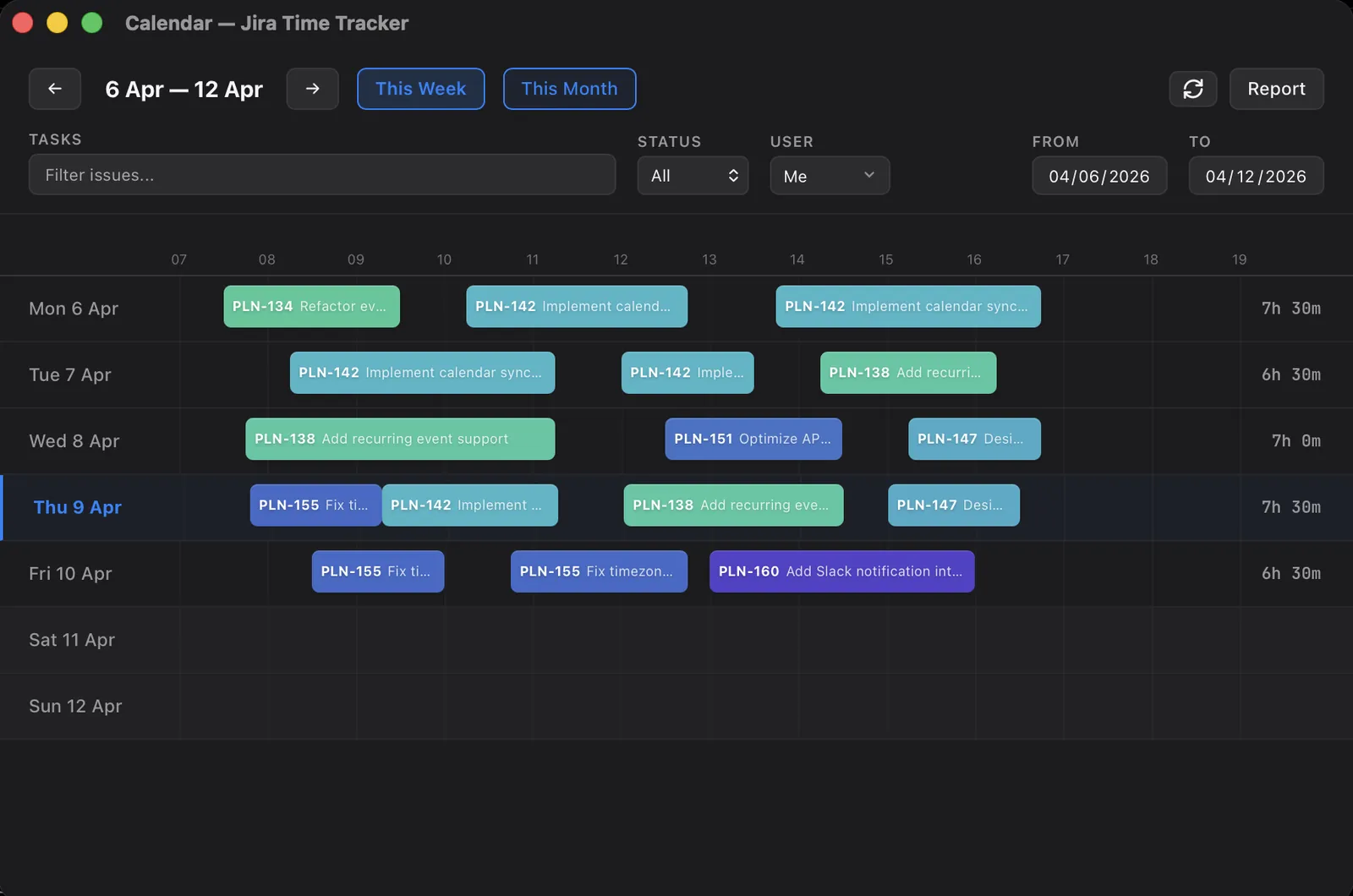
The middle option took the most iterations. An early version subtracted the gap by shortening a single worklog, which produced a tidy number and a quiet lie: an entry claiming you worked 9:00 to 11:30 when you actually left for an hour. What ships is a split. The work before the break is preserved as its own entry, the gap stays visibly empty, and tracking resumes on your answer. The calendar afterwards looks like your day actually went.
Why a question at all, instead of subtracting automatically? Because an input gap is a weak signal. The operating system can tell us your keyboard went quiet at 14:02. It cannot tell us whether you left the building or spent forty minutes at a whiteboard doing the most valuable work of the week. Every tool that silently discards idle time is deleting some real work along the way. We wrote about this line at length in what “automatic” really means in Jira time tracking: capture and delivery automate well, judgment does not. Idle detection captures the gap. Judging it is still your job, on purpose.
Sleep is not idle
The obvious implementation reads the OS idle counter, the seconds since your last input, and calls it a day. It has a hole: a sleeping machine is not counting, and the first trackpad touch on wake resets the counter anyway. Treat sleep like ordinary idleness and an overnight absence can look like a thirty-second blip that never even trips the threshold.
So sleep is its own case in Planim Time. The backend notices the jump in wall-clock time between timer ticks, which no wake-up mouse twitch can hide. And because someone returning from a twelve-hour absence does not need to be asked whether they are still there, long gaps skip the first-stage nudge entirely and go straight to the resolution dialog, with “stop when I left” one click away.
Two smaller decisions from live-testing the feature on ourselves. The dialog holds itself above other windows until you answer, because an idle prompt buried under a browser at 9:04 gets discovered at noon, after the morning it was supposed to protect. And the away clock keeps counting until you actually answer: the boundary of the gap is your decision, not the first accidental keypress that woke the screen.
The default threshold is 15 minutes. Five minutes fires on reading a long PR with your hands off the keyboard; we kept it available for people who bill strictly, along with everything up to an hour for meeting-heavy days.
What idle detection is not
Planim Time remains a timer, not a monitoring tool. Idle detection reads a single number, uses it locally to ask you a question, and that is the feature’s entire data footprint. No screenshots, no app or window logging, no activity scores, nothing recorded and nothing sent anywhere, the same posture we laid out in Jira time tracking without screenshots. Your manager does not see the prompt. There is no report of how often you go idle. The only artifact the feature can produce is a more honest worklog.
How other trackers handle the same gap
Idle detection itself is not rare. Clockify ships it even on the free tier, as a prompt to keep or discard the interval. At the other end of the spectrum, monitoring products like Hubstaff fold input gaps into an activity score that a manager reads, which turns the same OS counter into evidence about a person; we compared the two philosophies directly in Planim Time vs Hubstaff. Between those poles sit trackers that pause silently, discard silently, or ignore idleness entirely (our roundup of Jira time trackers notes which is which).
So the question for any vendor page is not “does it have idle detection”. It is who sees the gap and what acts on it: a local question addressed to you, a silent edit to your hours, or a report addressed to someone else. Those are three different products wearing one feature name.
Also in 0.4: sign in with Atlassian
Connecting Jira used to mean the API-token ritual: open Atlassian settings, create a token, name it, copy it, paste it. Version 0.4 replaces that with Sign in with Atlassian, one OAuth click in the browser and the app is connected. The token path is still there under “Use API token instead”; some people prefer scoped tokens, and some org policies require them. Long-lived credentials stay in your OS keychain. The OAuth broker processes token material transiently during sign-in and refresh, while the API-token fallback never touches our servers. The credential storage review explains the boundary.
The less visible 0.4 change is background cost. The timer now ticks in the native backend rather than the webview, so a hidden Planim Time can genuinely sleep; background CPU is down noticeably, most of all on Windows. Animations also respect the OS reduce-motion setting now. The full list, this release and every previous one, is on the changelog.
Availability
Idle detection is a Pro feature, live today on macOS and Windows. The 14-day Pro trial starts on first launch, no account and no card, so you can download Planim Time and let it catch your first forgotten timer this week. The timer itself is still not clever, and that is deliberate. The clever part is knowing when to ask.