Offline Jira time tracking: what still works when Jira is down
What a Jira time tracker can and cannot do offline: how a local-first desktop timer keeps measuring through outages, flights, and VPN drops, and what happens on reconnect.
On this page
Whether time tracking survives a Jira outage comes down to where the timer lives. A tracker that renders inside the Jira page, as Marketplace apps do, disappears along with that page. A tracker that runs on your machine and keeps its state there has no reason to stop: the timer keeps counting, stopped entries land in a local store, and Jira receives the worklogs once it’s back.
That is how Planim Time behaves, and not because we wrote a special offline mode. There is no separate offline code path in the app; what we call offline mode elsewhere is just the default behavior. Start, pause, and stop never touch the network; they write rows to a local SQLite database on your machine. Delivery to Jira is a separate step that happens when the connection is up and you decide to push. Everything below follows from that split.
Measuring and delivery are two different loops
The timer is one row in the local database. Starting, pausing, and stopping are writes to that row. The running count you see in the menu bar comes from a native background task that ticks once a second, independent of the app window, so the count doesn’t care whether that window is even open.
Because the state is a recorded start moment rather than an in-memory counter, the timer survives more than an outage. Quit the app and reopen it: elapsed time is recalculated from the stored start. Reboot the machine: same thing. Pausing banks the finished stretch into a worklog entry right away, so there is very little unsaved state to lose in the first place.
Delivery is the other loop. A pending entry becomes a Jira worklog when you push it, and the push sends the entry’s original start timestamp. A worklog recorded on Tuesday and pushed on Thursday lands on Tuesday, at the time you actually started. Waiting changes nothing about what gets written.
When it’s Jira that’s offline
An outage is the mild case: your internet is fine, Jira isn’t. We’ve written before about how often that happens and why we abandoned the Marketplace route. Here is what it looks like from inside the tracker.
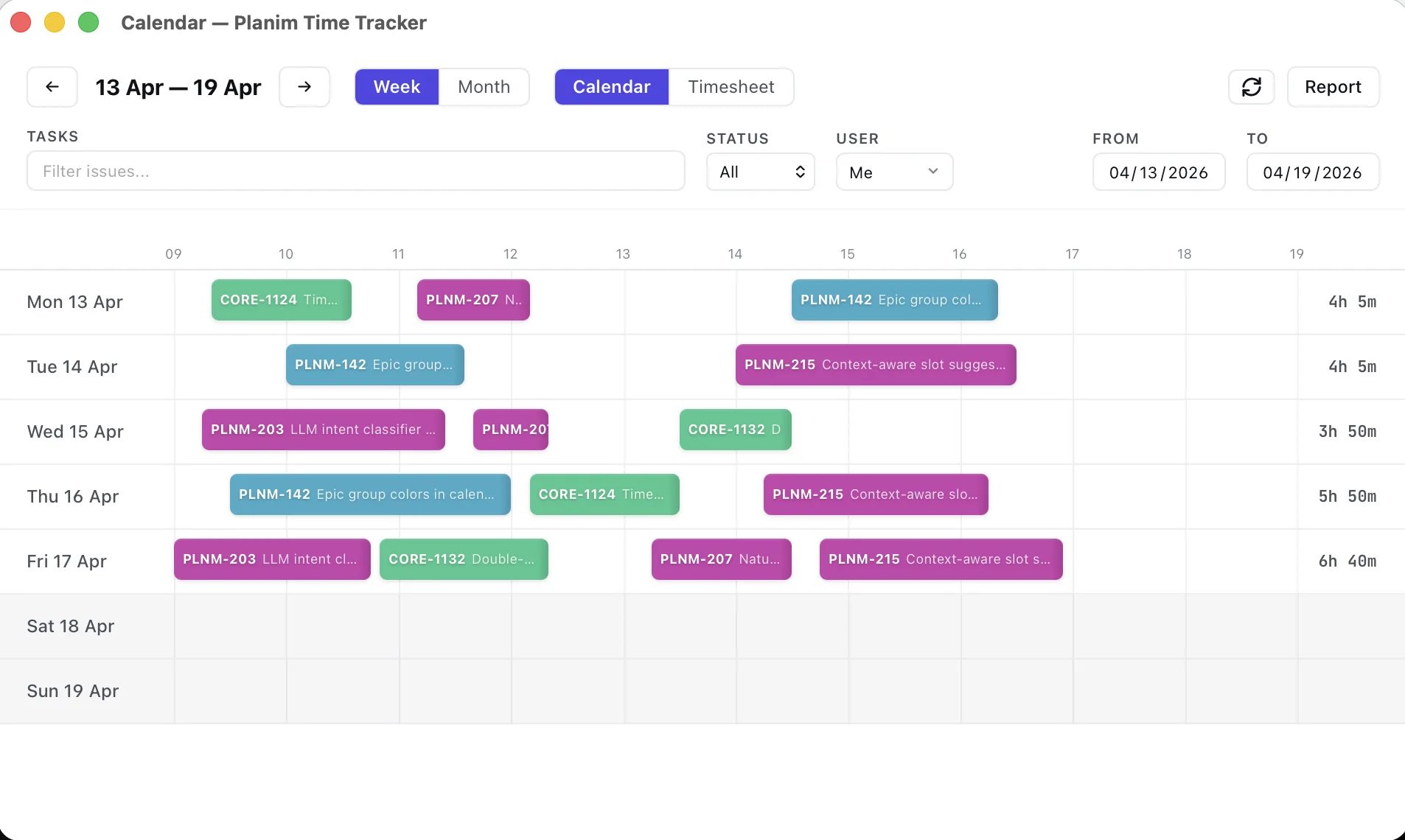
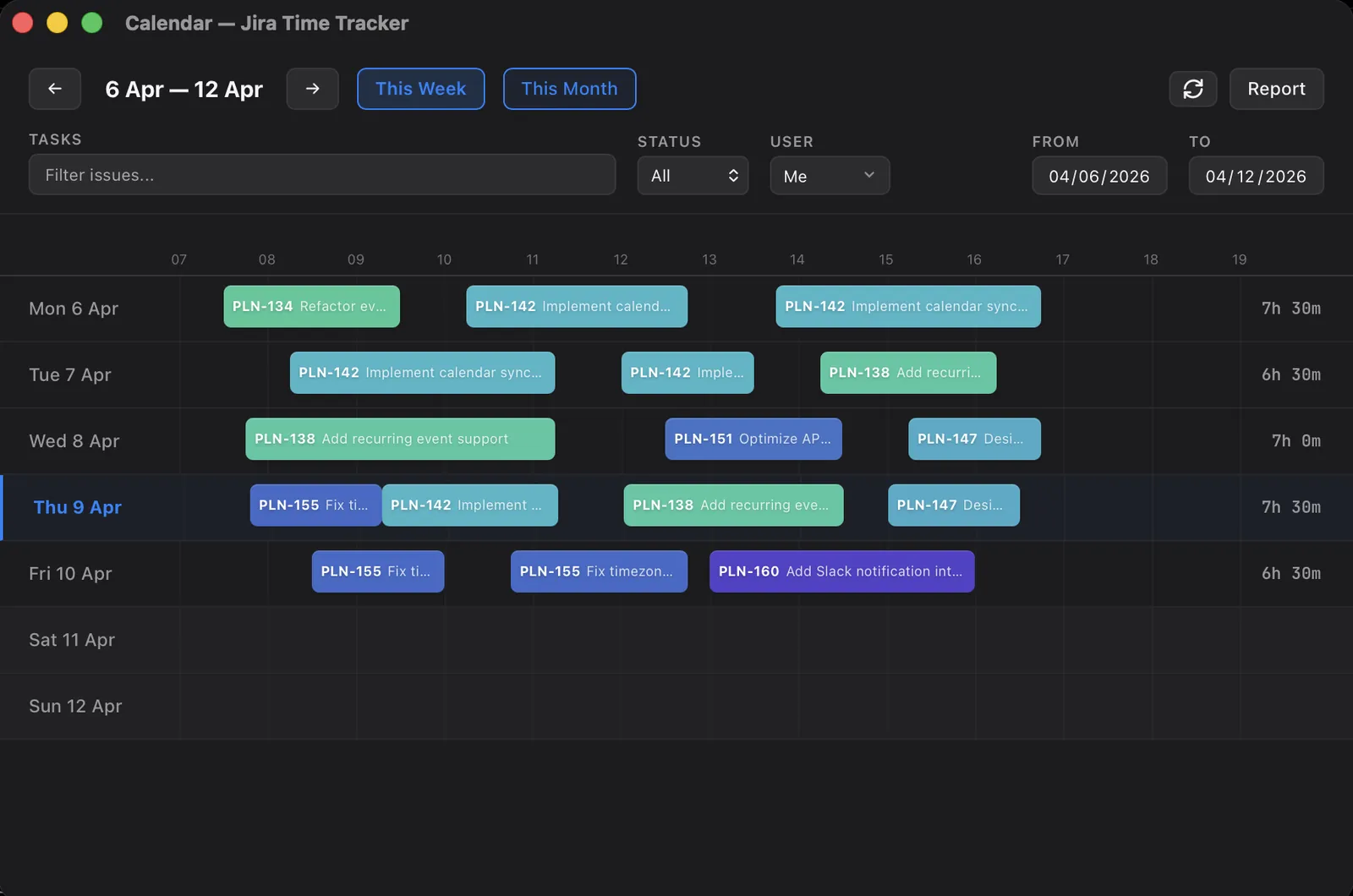
The running timer doesn’t notice. Stop works. Editing local entries works, and so does the calendar view, because both read from the local database. The issues you loaded during the session are still on screen, so moving the timer to another of them works too.
What waits is everything that is literally a read from Jira: searching for an issue you haven’t loaded, refreshing statuses, pulling teammates’ worklogs. That’s Jira’s side of the relationship, and no desktop architecture changes it. Background refresh picks up on its own once Jira answers; there is nothing to restart and no state to repair.
On a plane
Flight mode is the deeper case, because it usually comes with a cold start: you open the laptop somewhere over the Atlantic and the app has to come up without ever seeing a network. It does, and the timer state is exactly where you left it.
Sleep is the interesting part. Laptops on planes spend half the trip with the lid closed, and a naive timer would either count all of that or lose all of it. The app detects sleep as a gap of more than three minutes between two of its idle checks, then reconstructs the moment you left from the last input before the lid closed. When you’re back, it asks the same question it asks after any long absence: keep the time, subtract it, or stop the timer as of the moment you left. The full decision table is in our idle detection post. The relevant point here: all of it runs on the operating system’s input counters and needs no network at all.
Land, connect, push. The entries carry their real dates.
Behind a VPN
If your Jira lives behind a corporate VPN, a dropped tunnel is the same situation as flight mode: measurement continues, delivery waits. Hours tracked at the office, on the train, and at home accumulate in the same local store, and one push moves them to Jira when the tunnel is up again.
There is no separate reconnect procedure and no state to rebuild afterwards. The tunnel comes back, and the next push or background refresh simply succeeds.
What reconnect does, and what it doesn’t
When the connection returns, the tracker doesn’t start sending things behind your back. Pending entries stay pending until you press Push. There is a setting that pushes each entry the moment you stop the timer, and it ships off by default. We think that’s the right default for the same reason we don’t do screenshots: what leaves your machine should be something you’ve seen and decided to send.
Reading does resume by itself. The app polls Jira for worklog changes, so edits a teammate made while you were away arrive on the next cycle, about a minute in, and the merge rules from our two-way sync post apply as usual.
One practical habit: if you logged some of the same hours directly in Jira while the tracker was offline, glance over the day before pushing, so the same stretch doesn’t arrive twice.
See it yourself in five minutes
You don’t have to take a vendor’s word for any of this, ours included. The test:
- While online, start the timer on an issue you’re actually working on.
- Turn off Wi-Fi or switch on flight mode.
- Work for a bit, then stop the timer. The entry is saved locally with a pending status, its start time and duration already final.
- Turn the network back on. Nothing is sent automatically; the entry waits for you.
- Press Push, then open the issue in Jira. The worklog’s date and start time match when the work happened, not when the connection returned.
Run that same test against whatever tracker you’re evaluating and it will tell you more than a feature matrix. If the timer resets, or the entry lands with the push date instead of the work date, you’ve learned something important before it cost you a timesheet.
There was never a separate offline mode to build. The timer and the worklog store live on your machine, so offline is simply what Planim Time does when Jira isn’t reachable. If your weeks include trains, planes, a flaky VPN, or the occasional yellow square on Atlassian’s status page, download it and run the five-minute test.