Jira time tracker for Mac: what actually lives in the menu bar
Tempo and Clockwork run inside Jira's browser tab, not in your Mac's menu bar. What a native menu bar Jira timer changes, and how the Mac options compare.
On this page
A Jira time tracker earns a place on a Mac by doing two things at once: living in the menu bar instead of a browser tab, and writing native Jira worklogs instead of keeping your hours in somebody else’s database. That combination turns out to be rare. The biggest names in Jira time tracking, Tempo and Clockwork, are Marketplace apps that run inside Jira in the browser and never touch your Mac. The trackers that do ship real Mac apps, Toggl and Clockify, keep the canonical hours in their own clouds.
Planim Time is the tracker we built for exactly that gap: a native Apple Silicon menu bar app that signs in with your Atlassian account and treats Jira as the only database of your hours. Start a timer from the menu bar, stop it, and the result is a plain Jira worklog with a real start time, under your name, on the right issue. Here is what that looks like in daily use, and an honest map of what everyone else offers a Mac.
A Jira timer in the Mac menu bar
The macOS menu bar can do something a Windows system tray cannot: display live text. Planim Time uses that for a ticking readout next to your clock, issue key and elapsed time, PAY-214 00:47:12, updating once a second, with a ⏸ when paused. We ship the same tracker on Windows, where the OS gives a tray icon no title at all, so in our own cross-platform code the title update is a no-op there. On a Mac the readout is simply always in view, and that changes behavior more than it sounds like it should.
A timer you can see without doing anything is a timer you actually check. A wrong issue key gets spotted right after standup; a timer still ticking at 19:40 gets stopped before dinner. Both errors die before they’re born, because the state sits next to the Wi-Fi icon instead of behind a tab switch. The opposite failure, ten minutes into a bugfix with no timer running, is caught the same way: the empty spot in the menu bar looks wrong.
What updates that title is a background task in the compiled Rust core, waking once a second whether or not the app’s window is open. Keep the window closed all day and the menu bar item keeps counting. Click the item and the timer panel opens: JQL-driven search over whatever filter you already use in Jira, one click to start, pause, or switch.
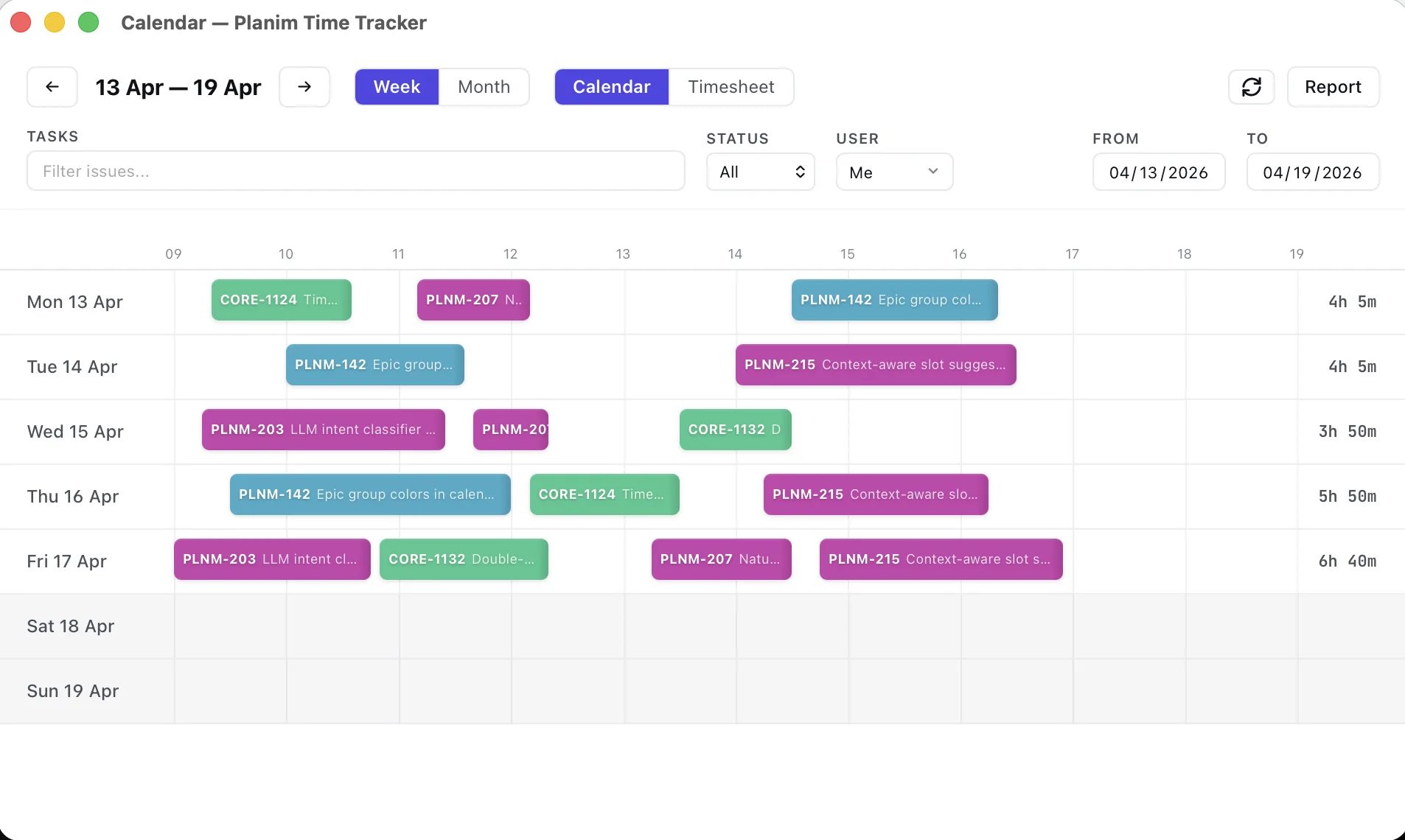
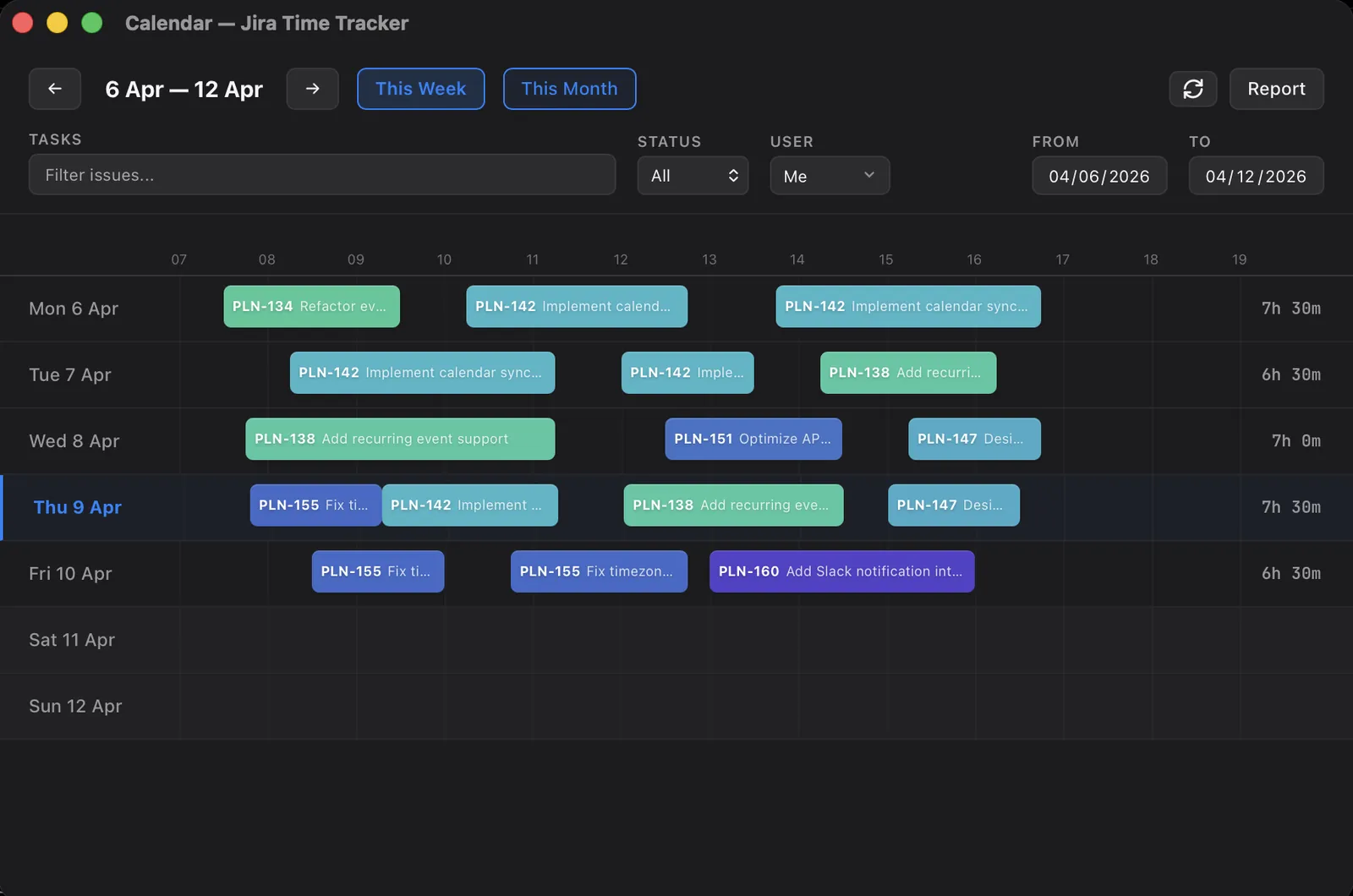
When you do open the window, your worklogs are a calendar: the week as blocks you can drag, resize, and move between issues, including entries you logged through Jira itself. Seeing all your worklogs in one place is its own story; the short version is that Friday reconciliation stops being a JQL session and becomes a glance.
The Mac details
Four things sit under that menu bar item, because on a Mac “native” should mean more than an icon.
Credentials go in the Keychain. Long-lived Atlassian OAuth credentials are stored in macOS Keychain Services rather than in a config file somewhere under ~/Library, and you can audit the entry yourself in Keychain Access under planim-time-tracker. The vendor-by-vendor breakdown of who stores what where is in where Jira time trackers store credentials.
Idle detection is a single OS call. macOS exposes seconds-since-last-input through a single CoreGraphics call, CGEventSourceSecondsSinceLastEventType. We call it directly over FFI (no Rust crate exposes just that one function) and compare against a threshold you set, from 5 minutes to an hour. Past it, the app asks what to do with the gap: keep it, subtract it, or stop the timer at the moment you left. A closed lid works the same way, because sleep shows up as a gap on wake. The full design is in the idle detection post; it ships as part of Pro, and nothing about your activity is recorded, one number is compared against one threshold.
The binary is Apple Silicon native. The DMG is an arm64 build running without Rosetta translation, and there is no bundled browser engine pretending to be an app underneath.
Offline needs no mode switch. The timer and every pending worklog live in a local SQLite database on your Mac. Jira being unreachable, on a flight or during an Atlassian incident, changes nothing about measuring; entries queue and push when you’re back. The mechanics, including a reconnect test you can run yourself, are in offline Jira time tracking.
What the others offer a Mac
Tempo and Clockwork put the tracker inside Jira, so on a Mac they are a browser tab. Close the tab or restart the browser and there is no timer anymore; Clockwork’s timer needs an active Jira session in the browser. Tempo’s automated tracking builds activity cards from calendar, IDE, and GitHub activity for you to approve later, which still leaves no Mac surface where a timer visibly runs. Central install and manager-facing timesheets are what you get in exchange for living inside the tab.
Toggl and Clockify ship real native Mac apps, and the catch sits one layer down, in where the hours live. Both keep the canonical record in their own cloud. Toggl’s own support docs say Jira data flows one way, from Jira into Toggl; putting hours back on a Jira issue takes a third-party Marketplace app. Clockify’s current Jira app documents two-way worklog sync, but it requires a Jira admin install, and every entry exists twice, once in Clockify and once in Jira. If Jira is where your team reads time, that means maintaining a second timesheet system so the first one stays accurate.
| Tool | On your Mac | Where the hours live |
|---|---|---|
| Planim Time | Native menu bar app | Jira worklogs, queued locally when offline |
| Tempo | Browser tab (Marketplace app) | Tempo’s cloud; a basic anonymised record syncs to Jira |
| Clockwork | Browser tab (Marketplace app) | Jira worklogs |
| Toggl Track | Native desktop app | Toggl’s cloud; write-back to Jira needs a third-party app |
| Clockify | Native desktop app with a tray timer | Clockify’s cloud, two-way synced to Jira via admin-installed app |
The table is deliberately narrow. Pricing, reporting, and team features are covered in the engineering-team shortlist and on the individual comparison pages linked above.
Start the next timer from the menu bar
There are two cases we won’t pretend to win: a team that genuinely lives inside the Jira tab all day is well served by an in-Jira plugin, and if you need a phone timer, we don’t make one. Everything else about tracking Jira time on a Mac, the always-visible ticker, worklogs that land in Jira under your own name, the Keychain, the closed-lid prompt, a timer that ignores outages, is the product we build every day. Download it, sign in with Atlassian, and the next timer you start will be one click away, ticking where you can see it. And if the rest of your team is not on Macs, the same tracker ships natively for Windows and Linux.