How to move a Jira worklog to another issue
Jira has no move button for worklogs: the only path is delete and re-log. The by-hand steps, what to copy before deleting, and the one-click way.
On this page
Jira cannot move a worklog to another issue. There is no button for it in the interface and no operation for it in the REST API: once time is logged, the entry belongs to that issue, full stop. The only way to relocate it is to delete the worklog from the wrong issue and log the time again on the right one. You can run those two steps by hand, which is what this post walks through, or let a tool run them for you as one action.
Both halves matter, because the by-hand version has a trap: the moment you delete the entry, its duration, start time, and comment are gone. Copy them out first, then delete, then re-log. Here is the full procedure, what it touches along the way, and the version of it that takes one click.
Why there is no move button
A worklog stores the time spent, when the work started, a comment, and who logged it. What it does not have is an issue field you could edit: the issue is not a property of the worklog but the place it lives. So “move this entry” is not an edit Jira could offer. It is always a new worklog on the destination plus a deletion at the source, and every tool that advertises moving worklogs, ours included, is running exactly that pair underneath.
Knowing this changes how you treat the manual version. You are destroying a record and typing a new one, which is why copying the details comes before everything else.
Moving a worklog by hand
Here is the full native path on Jira Cloud:
- Open the issue that has the entry and switch the activity section to the Work log tab.
- Copy the details somewhere first: time spent, the date and time the work started, the comment. A notes app or even the clipboard will do.
- Delete the entry with the trash icon. Jira will ask how to treat the issue’s remaining estimate.
- Open the correct issue and log the time again through the Log work dialog, pasting back the duration and comment. Set the Date started field to the original date and time, so Tuesday’s work stays on Tuesday instead of jumping to today.
- Check both issues. The entry should exist once, on the right issue, with the right date.
Two things to know before you start. Permissions come in pairs here: deleting your own entry needs Delete own worklogs on the source project, and logging the replacement needs the log work permission (Work on issues) on the destination. And the remaining estimates of both issues get touched, one on the delete, one on the re-log, so if your team plans by estimates, answer both prompts deliberately.
Fine for one entry, painful for a Tuesday
Misfiled time rarely arrives one entry at a time. The timer keeps running on the old ticket after you switch tasks. The hours land on the story when the sub-task was the actual work. Two client projects have near-identical names and the worklog picks the wrong one. Each of these produces a batch, and the manual procedure scales linearly: copy, delete, retype, check, per entry.
That cost lands somewhere concrete. Until the entries sit on the right issues, project totals are wrong, reports read wrong, and anything downstream of them, like billing, inherits the error. Which is why the realistic failure mode isn’t doing the moves badly. It’s looking at nine misfiled entries and deciding the numbers are close enough.
The one-click version
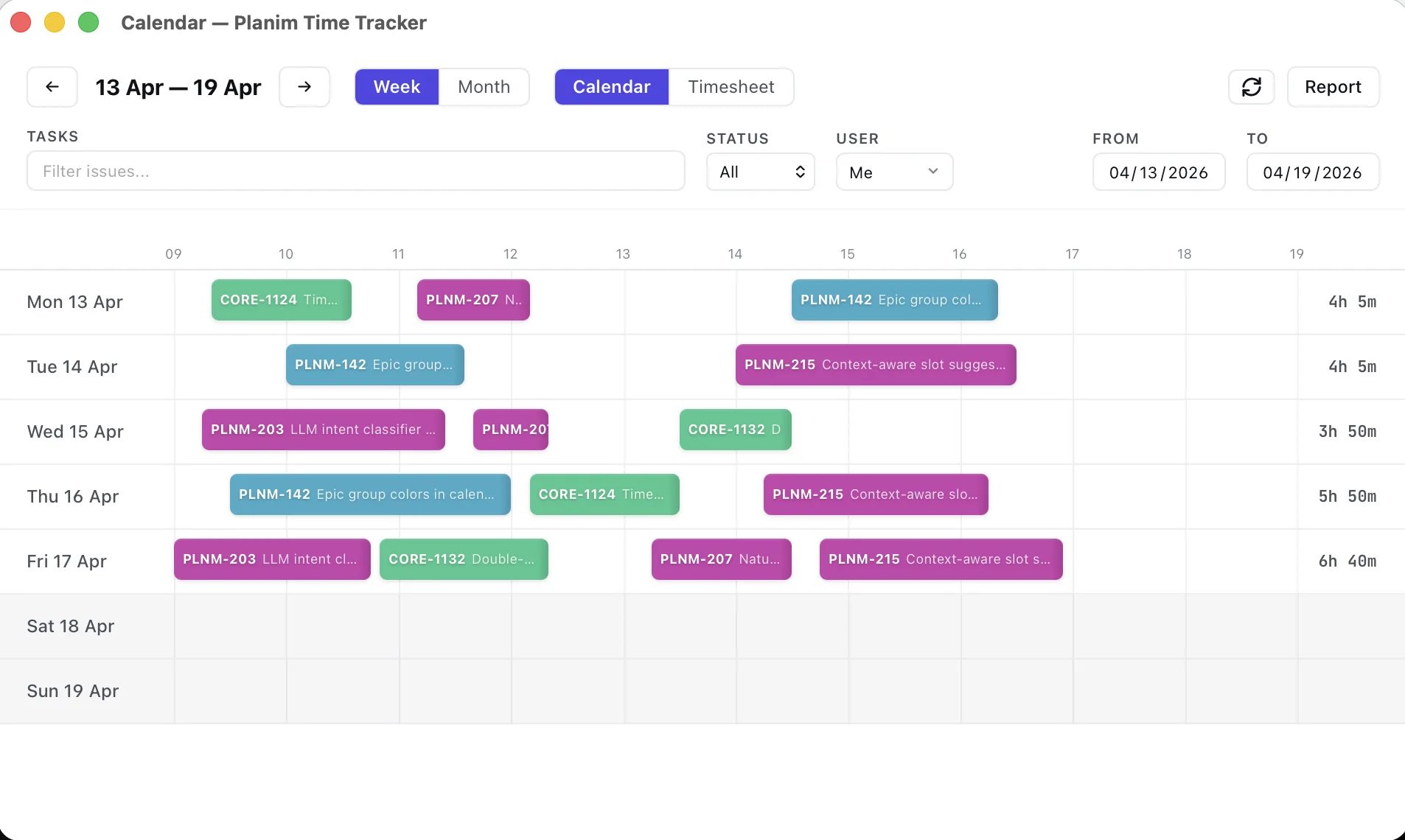
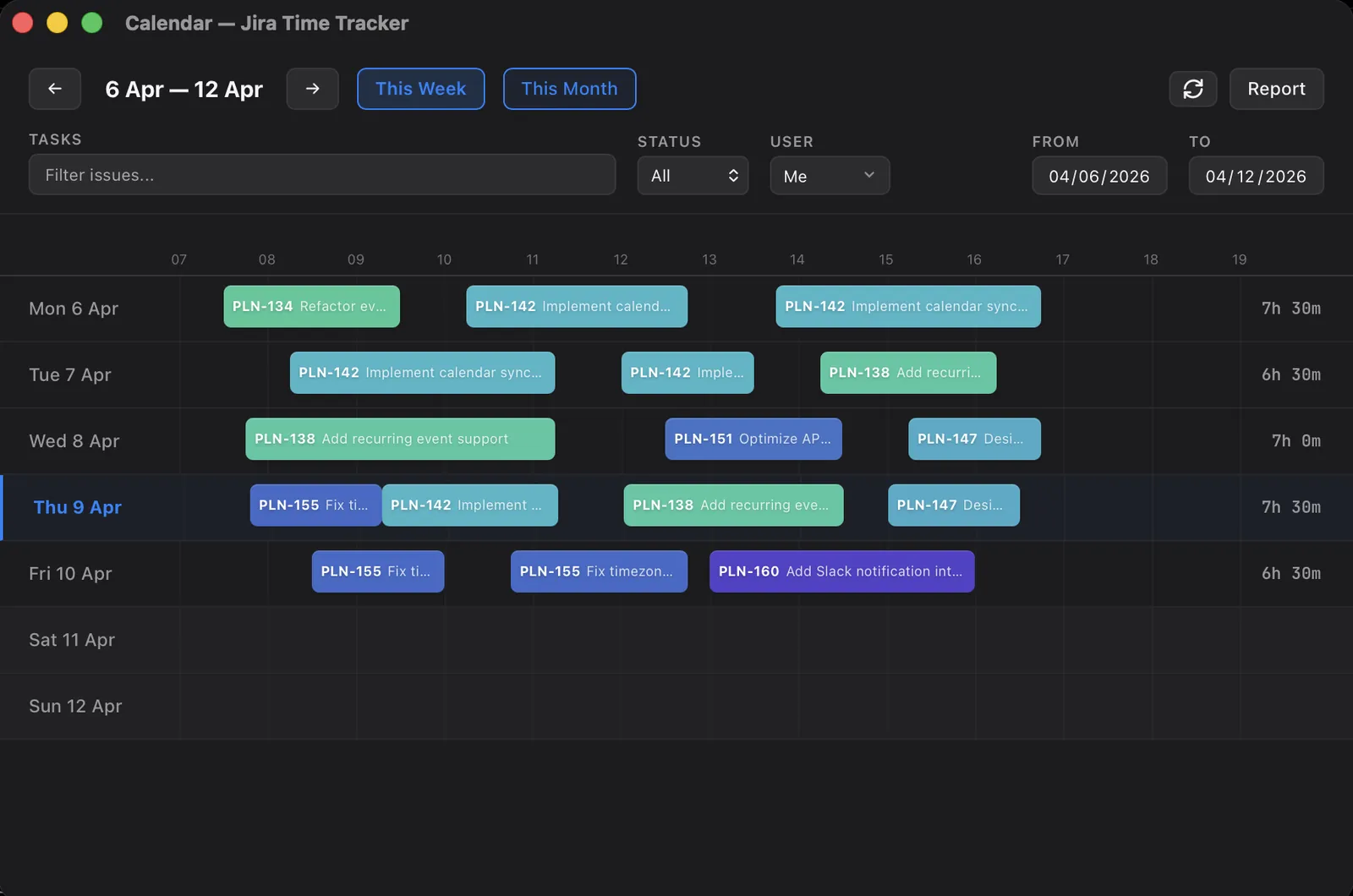
This is a correction we made a first-class action in Planim Time. Your logged time shows up as a week of blocks on a calendar, so a misfiled entry isn’t a needle in a Work log tab: it’s the block sitting there with the wrong issue key on it. Click it, pick the correct task from the search, confirm. The duration, the original start time, and the comment text all arrive on the new issue with it, and the change lands in Jira through your own account.
Underneath, Jira still has no move, so the app performs the delete-and-recreate pair for you as a single action. What you experience is the block changing its label. Nine misfiled entries stop being an afternoon and become nine quick moves, and this works on any worklog you authored, including ones created in Jira’s own dialog or by another tool. Wrong day and wrong duration are corrections on the same screen, covered in our guide to changing logged hours.
The short version
One stray entry: copy its details, delete it, re-log it with the original start time. It takes two minutes and the steps above cover the traps. If wrong-ticket time is a weekly visitor, put your worklogs on a calendar where the next misfiled hour costs a click, and where you’ll actually spot it in the first place.