How to edit or remove logged time in Jira
Open the issue, go to the Work log tab, find the entry: pencil edits it, trash removes it. That fixes one worklog. When a whole day is wrong, a calendar is faster.
On this page
The Work log tab sits in the activity section at the bottom of the issue view. The edit dialog behind the pencil lets you fix the time spent, the date and time the work started, and the description. That is the whole native path, and for a one-off correction it is all you need.
Where it falls short is volume. Jira edits worklogs one entry, on one issue, at a time, and there is no screen showing everything you logged on Tuesday, which is exactly the screen you need when Tuesday’s numbers look wrong. So this post is in two parts. The native procedure first, then the faster way for when correcting time is routine: your worklogs as a calendar in Planim Time, where a fix is a drag instead of a form.
Changing a worklog in Jira itself
The native procedure on Jira Cloud:
- Open the issue that holds the worklog.
- In the activity section at the bottom of the issue view, switch to the Work log tab. Each entry lists its author, the date, and the time spent.
- Find your entry and use the pencil icon to edit it or the trash icon to delete it.
- In the edit dialog, change the time spent, the date and time the work started, or the description, then save. Both editing and deleting also ask how to treat the issue’s remaining estimate.
Two constraints decide whether that is enough.
Permissions. Editing your own entries requires the Edit own worklogs permission in the project’s permission scheme; changing entries other people logged requires Edit all worklogs. Deletion splits the same way, into Delete own worklogs and Delete all worklogs. Most setups grant the “own” pair, so if the pencil is missing on your own entry, the permission scheme is the first thing to ask an admin about. Atlassian’s log time on an issue doc covers the fields and the permissions.
No moving between issues. A worklog has no field for the issue it belongs to, so Jira cannot move logged time to another ticket. “I logged this against the wrong issue” natively means deleting the entry and re-logging it on the right one, retyping the duration, start time, and description as you go. Creating the replacement is the standard log work dialog.
Why editing in Jira is such a slog
A worklog in Jira lives on one issue, and that issue is the only place you can edit it. So correcting a week means remembering which issues you touched, opening each one, finding the right entry among several, and fixing them one by one. Three things go wrong every time:
- You can’t see the shape of a day. The hours are scattered across however many issues you worked, so an obvious mistake (two hours double-logged, a block sitting on the wrong day) stays invisible until someone runs a report and asks about it.
- You can’t move time between issues. The worklog has no field for the issue it belongs to, so “I logged this against the wrong ticket” has no edit behind it. You delete the entry and log it again somewhere else, retyping the duration, the start time, and the comment by hand.
- You edit blind. The form shows you one entry’s number. It does not show you that entry next to the meeting it overlaps or the commit that proves when you actually started.
None of this is hard. It is just slow, and slow is the reason most people never correct anything and let the wrong numbers stand. The rest of this post is the calendar view that takes those steps out.
The faster way: your logged time as a calendar
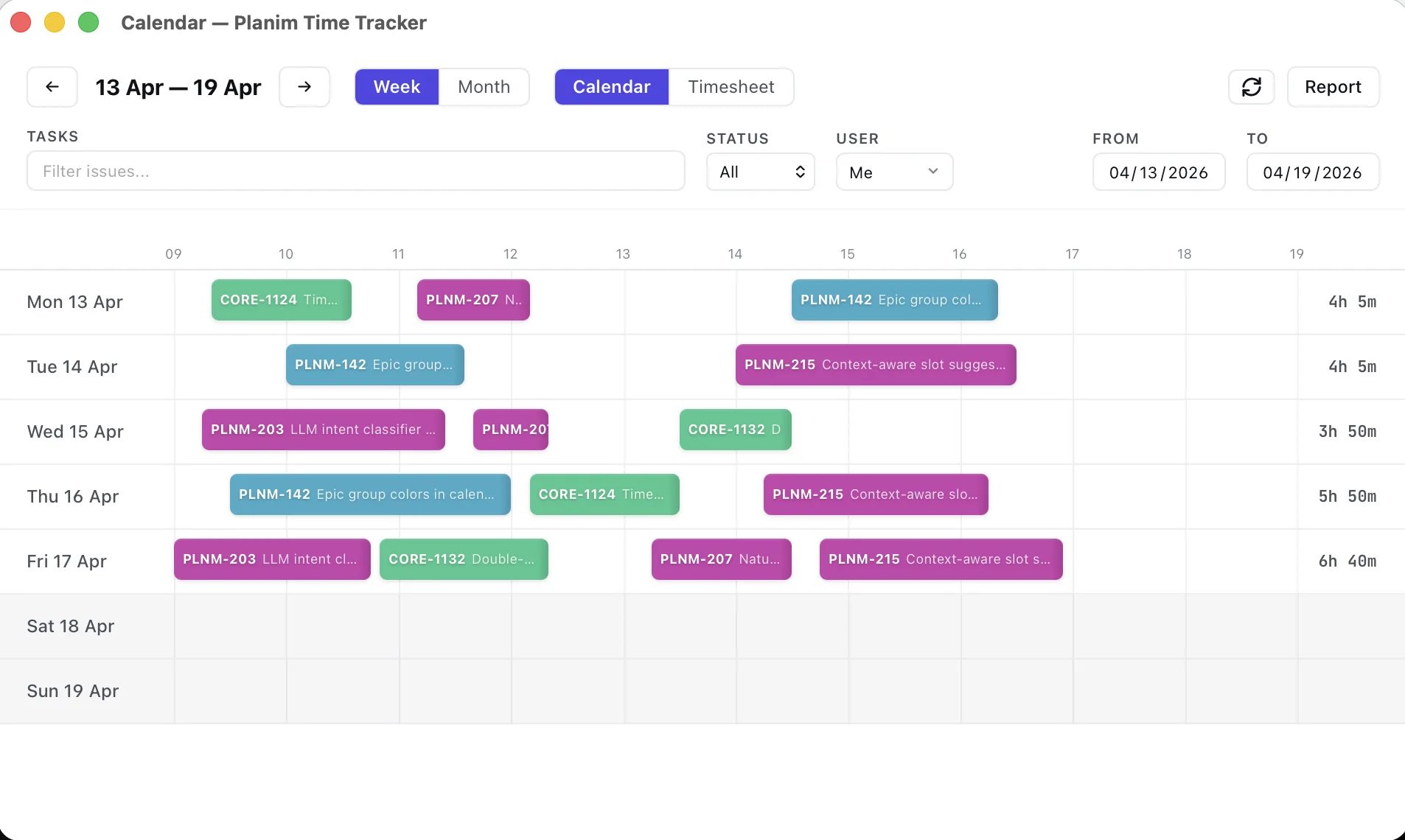
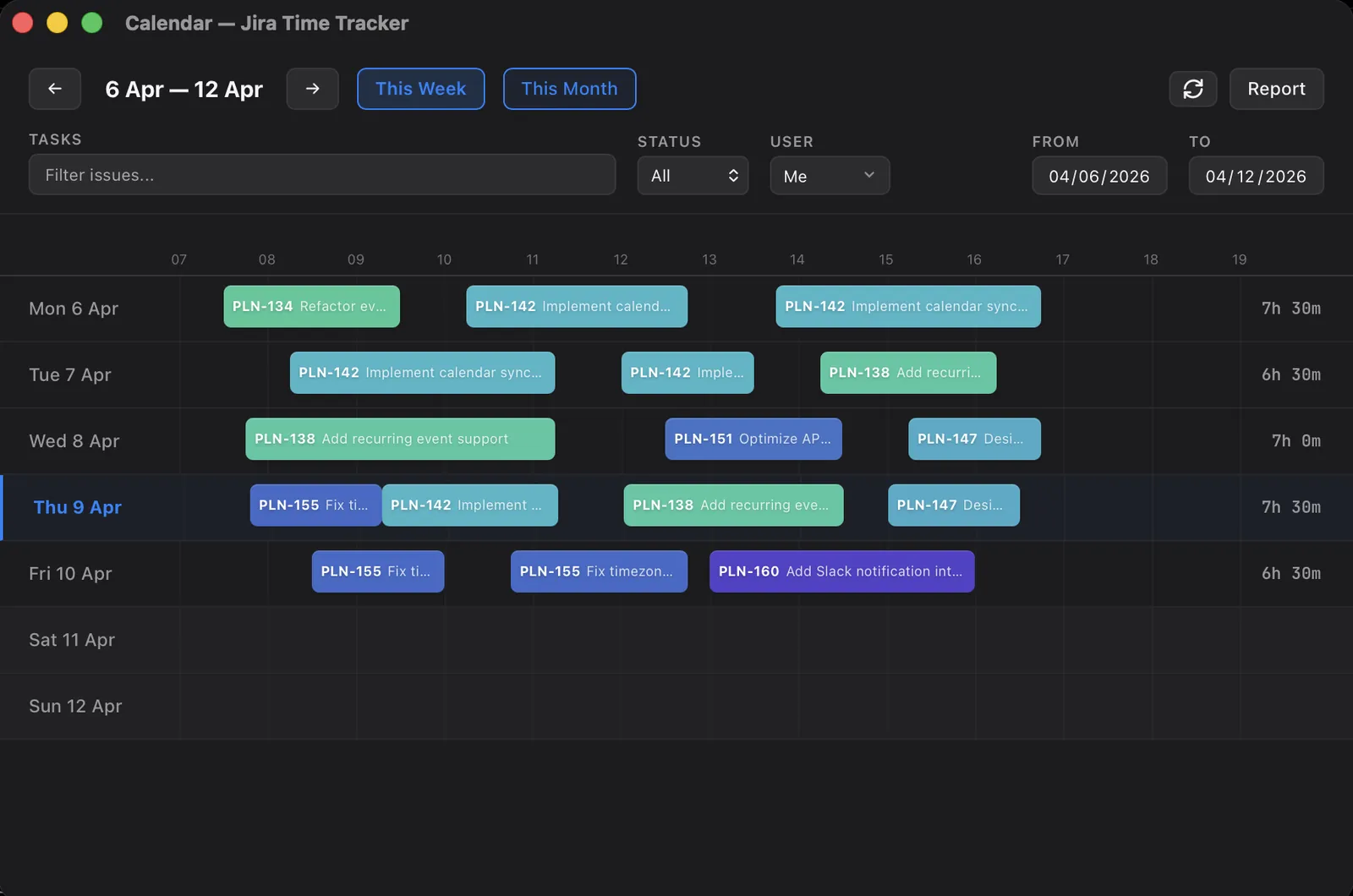
This is the part we built Planim Time for. Open the calendar and pick a day or a week. Every worklog you authored shows up as a block on the time grid, placed at its start time, sized to its duration, tagged with the issue key. The day is finally in one view instead of spread across a dozen tickets. The calendar sits in the Pro tier; the 14-day trial that starts on first launch covers it.
The part that surprises people: this is not limited to hours you logged through Planim Time. We pull every Jira worklog where Jira identifies you as the author. An hour created through Jira’s own dialog, an author-preserving integration, a script against the REST API, or your other laptop appears on the calendar and is editable. The import runs by date and author (worklogAuthor = currentUser()). Tempo Cloud is a notable exception: its Jira-side worklogs are attributed to Timesheets by Tempo, so Jira JQL and the Jira REST API cannot identify the original person; edit those in Tempo or migrate them from a Tempo export.
Hours logged by other people on the same issues are there too, but as read-only context. You see a teammate’s two hours sitting next to yours so the day reads correctly, and the app will not let you drag or delete them. Their time is theirs to fix.
Change the time: drag and resize
To move a worklog to a different time, drag the block. To change which day it lands on, drag it onto another day in the week view. To change how long it was, grab the right edge and pull. Everything snaps to one minute, which is as precise as a corrected worklog ever needs to be, and because the calendar lives in the menu bar the whole correction happens without a browser tab or a page reload.
The edit applies the moment you let go, and it is optimistic: the block moves on screen first, then it is saved. For a worklog that is already in Jira, that save is written through to Jira right away, and if Jira rejects it the block snaps back to where it was, so what you see on the calendar and what is stored in Jira never quietly disagree.
When you need exact numbers rather than a drag (a worklog that should read precisely 1h 45m, or a comment to rewrite) click the block to open the editor and type. There is also a timesheet grid, an issue-by-day table, where you click a cell and type the hours directly. 1.5, 90m, and 1h30m all parse, and clearing a cell to zero deletes the entry after a confirm.
Move time to a different issue
This is the correction Jira has no answer for, so it gets its own step. Open the block, choose a different task (search reads from your loaded issues and falls back to a Jira search if the key isn’t loaded yet), and confirm. The duration, start time, and comment move across with it.
Here is what happens underneath. Jira’s API has no way to change the issue on an existing worklog, so a move is always a delete on the old issue plus a create on the new one. By hand that is two operations and a full retype. Planim Time runs both as a single action, and if the create half ever fails after the delete half has already gone through, it keeps the worklog as a pending draft on the new issue so you can push it again rather than lose it. The wrong-ticket case has a dedicated guide, including the full by-hand procedure in Jira itself.
Delete a worklog
Click the block, delete it, confirm. A synced worklog is removed from Jira at the same time, not just hidden from the calendar. The same rule as everywhere applies: you delete your own worklogs, and the read-only ones from teammates stay where they are.
Create one while you’re in there
Correcting a week is rarely only edits. Usually something is missing too. You can click an empty stretch of the grid to drop a new worklog there, type hours into an empty timesheet cell, or pull one of the suggestions Planim Time surfaces from your recent work onto the grid. A new entry pushes to Jira the same way an edit does. The line between fixing a day and backfilling one mostly disappears when both happen on the same grid.
When the edit reaches Jira
Whether an edit lands in Jira right away comes down to one thing: has the worklog been pushed yet. A worklog already synced to Jira is edited as you go. Drag it, resize it, re-assign it, or delete it, and Planim Time writes the change through your signed-in Jira identity, with the rollback above if Jira refuses. A draft stays on your machine until you push it. That is also why drafts work offline: re-timing a block on a plane only touches the local copy until the next sync.
Sync runs in both directions, and that is the part that makes editing safe. If you or a teammate changes a worklog directly in Jira, the calendar pulls that version on the next sync instead of stamping over it. A push-only integration cannot do that, so its conflict behaviour needs to be tested before teammates edit the same entries. The two-way Jira worklog sync guide shows the exact test.
Which action for which fix
The short version, by the correction you are making:
- Wrong duration or start time: drag or resize the block. Nothing to type.
- Wrong comment, or an exact duration: click the block and edit.
- Logged against the wrong issue: open the block and re-assign it. The app handles the delete-and-recreate.
- Double-logged, or on the wrong day: drag it to the right day, or delete it.
- Missing entirely: click an empty stretch of the grid and add it.
The four corrections all work on any worklog you authored, including the hours some other tool logged for you, and each one made against a worklog already in Jira lands there as you make it. Creating a missing entry is the exception: it leaves a draft you push like any new worklog. If you have been leaving your Jira hours wrong because correcting them issue by issue isn’t worth the afternoon, that is the friction the calendar removes. Point Planim Time at your Jira and the next time the numbers are off you fix them by dragging a box.