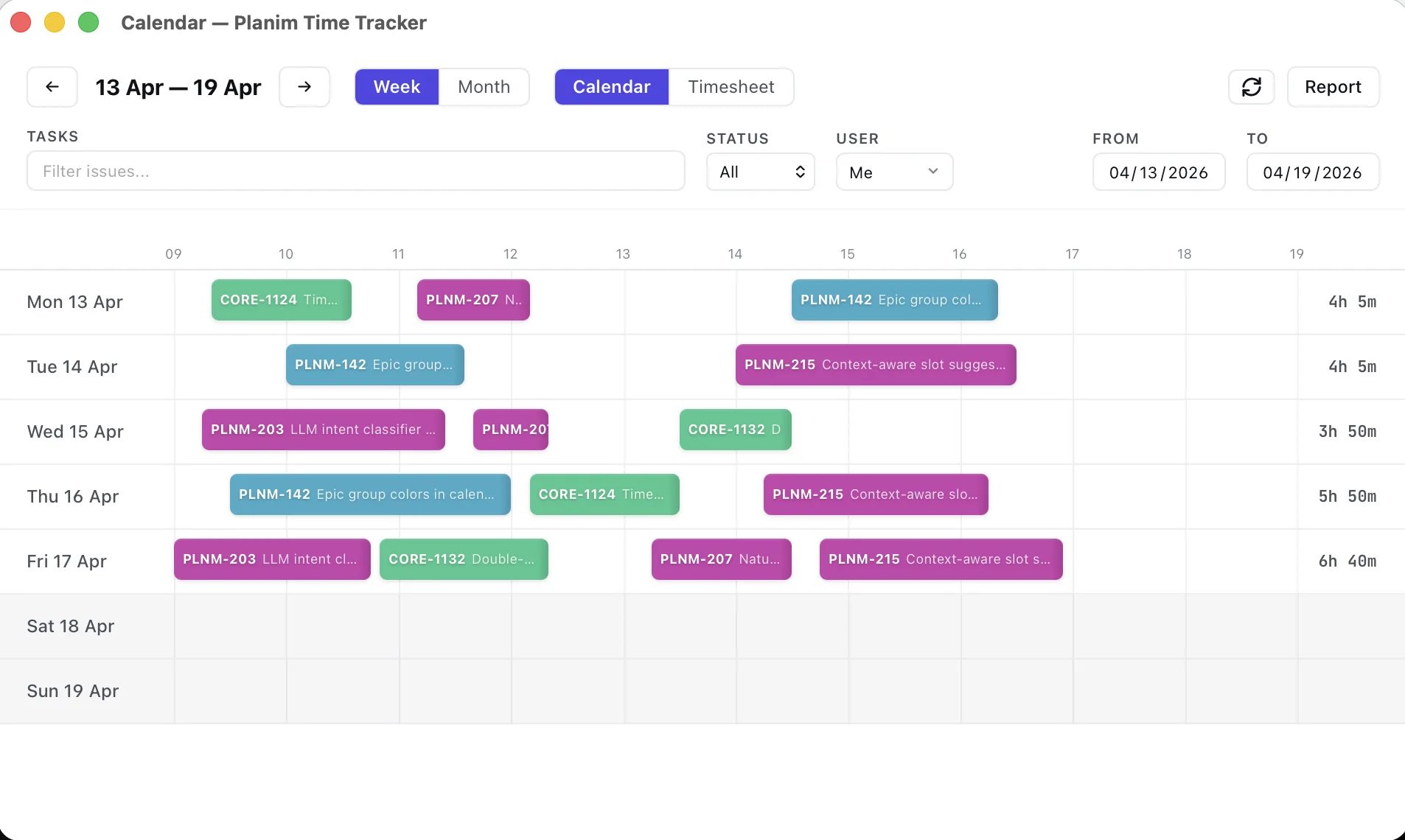
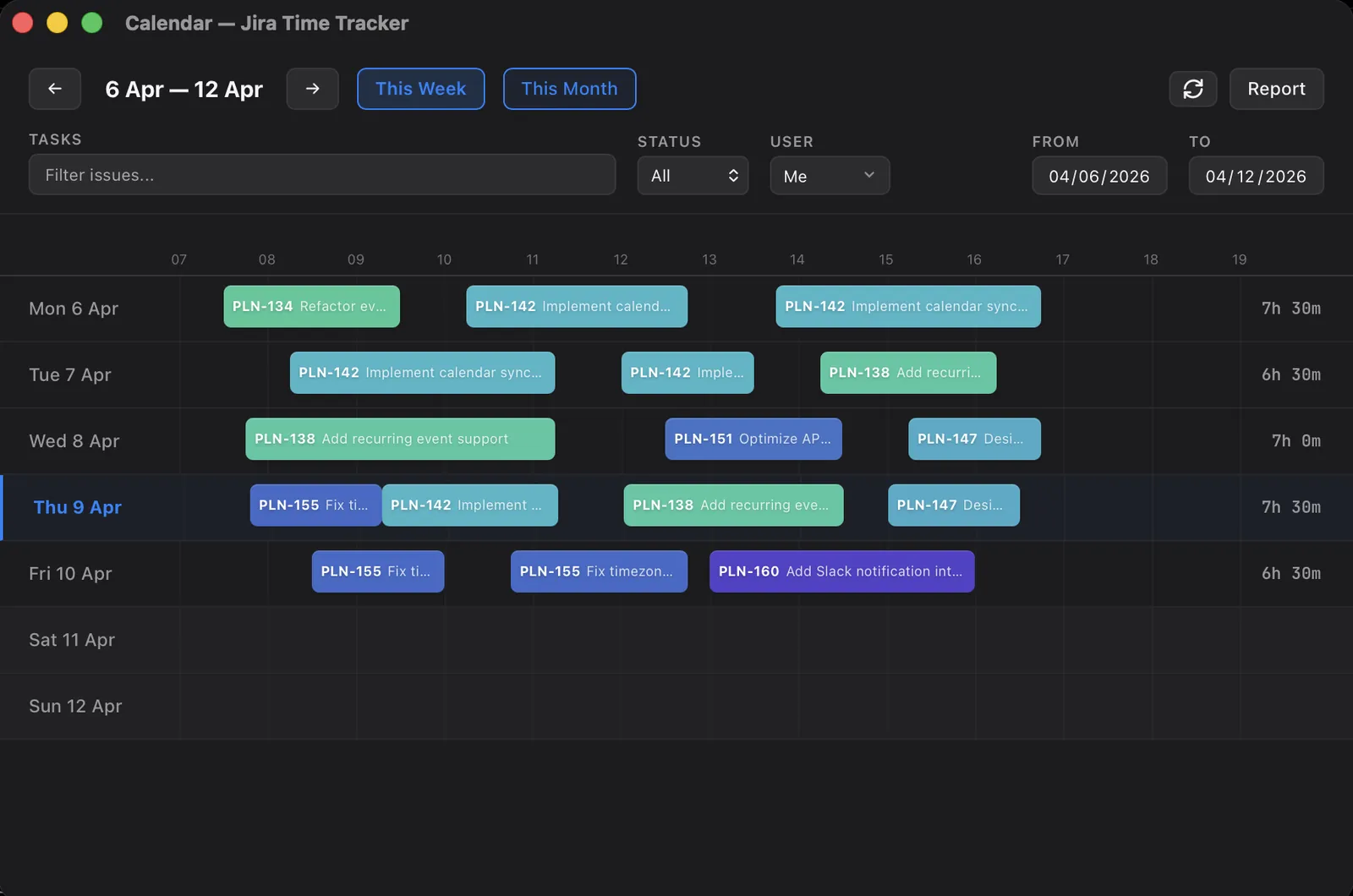
How to log meeting time in Jira straight from your calendar
How to log meeting time in Jira by hand, and how Planim Time turns Google, Outlook and Apple Calendar meetings into worklogs you confirm with a click.
On this page
Meetings are the biggest part of a working week that never reaches Jira. A worklog has to belong to an issue, and a standup, a design review or a candidate interview rarely has one, so the hour gets spread across whatever tickets look plausible on Friday, or dropped. This post covers where meeting time belongs in Jira, how to log it by hand, and how Planim Time does it from your calendar with the issue already picked.
Where meeting time goes in Jira
Jira has no notion of a meeting. Time exists only as worklogs on issues, and the Atlassian Community has settled on two ways to live with that.
A ceremonies issue per sprint. Something like OPS-15 Sprint ceremonies, where standups, planning, refinement and the retro are logged. It is cheap to set up, and ceremony time stays visible in reports.
The issue the meeting was about. A design review of the checkout flow goes on the checkout story, a sync with finance about partial refunds goes on the refunds ticket. Billable work needs this, and so does anyone comparing estimates to actuals.
Most teams use both. What wears people down is doing it six to ten times a day and typing every worklog.
Logging a meeting by hand
Open the event and note the start time and length. Open the issue in Jira and choose Log work (or press . and type “log”). Enter the time spent, 45m or 1h 30m. Change Date started from its default of right now to when the meeting began, otherwise the worklog says you were in the 10:00 standup at 17:40. Paste the meeting title as the comment, leave the estimate unchanged, save. The Log work walkthrough covers the dialog field by field.
Nobody does this at 10:45 after the standup. It gets done on Friday from the calendar, and by then each entry is a rounded guess with a comment like “meetings”. The backfill guide is about that Friday.
From your calendar instead
Planim Time connects to Google Calendar, Microsoft 365 or Apple Calendar with read-only access, and your meetings show up where you already log time.
Connecting. Settings, Calendar tab, then Connect Google, Connect Microsoft or, on a Mac, Connect Apple Calendar, which covers iCloud and every other account in the Calendar app through the system permission. The Google and Microsoft sign-ins open in your browser and ask for read permission only. Connect as many accounts as you like and tick the calendars to read under each one; only the primary calendar is on by default, so a shared team calendar does not get pulled in by accident.
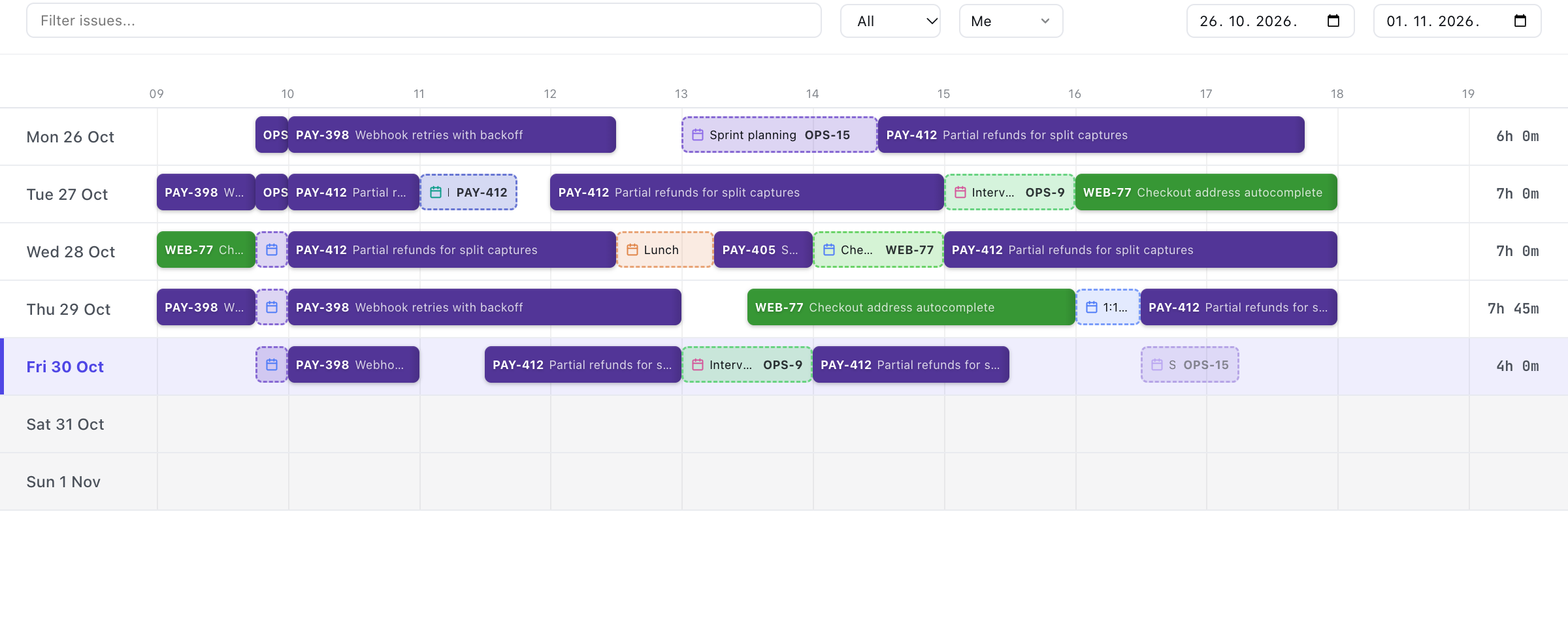
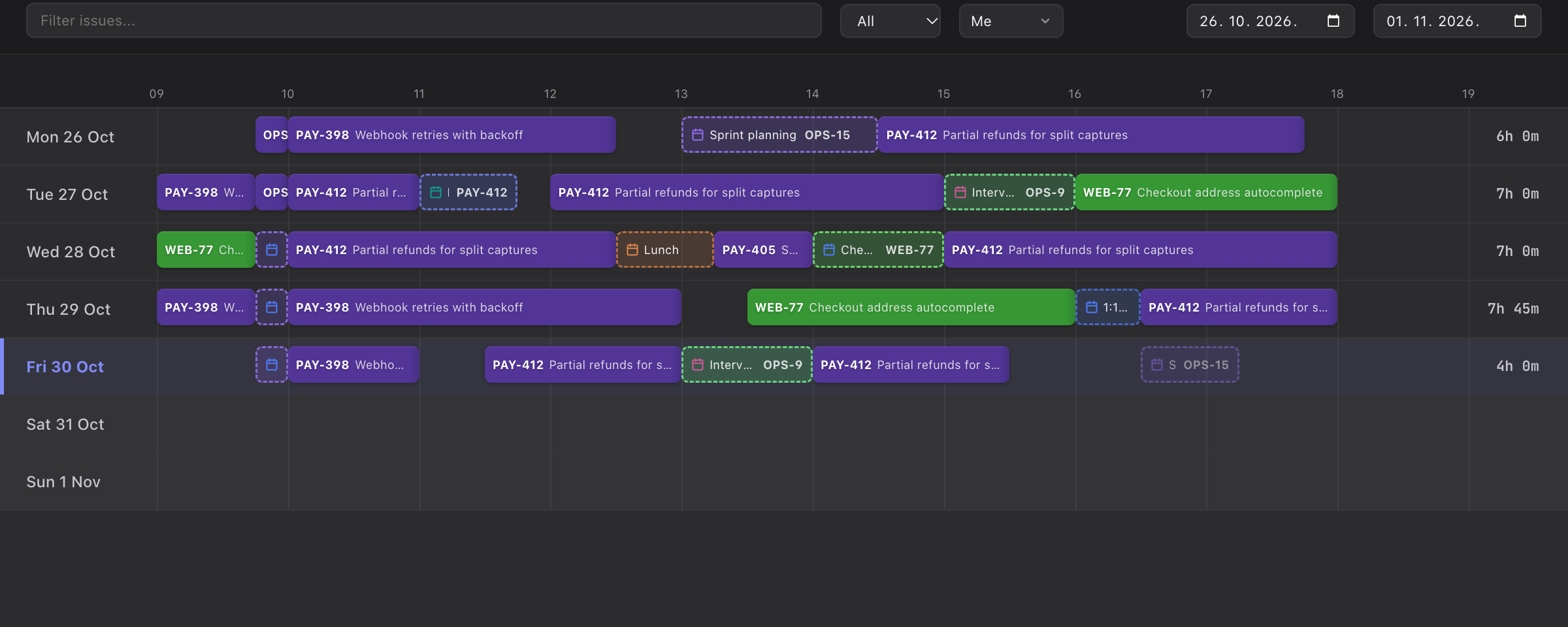
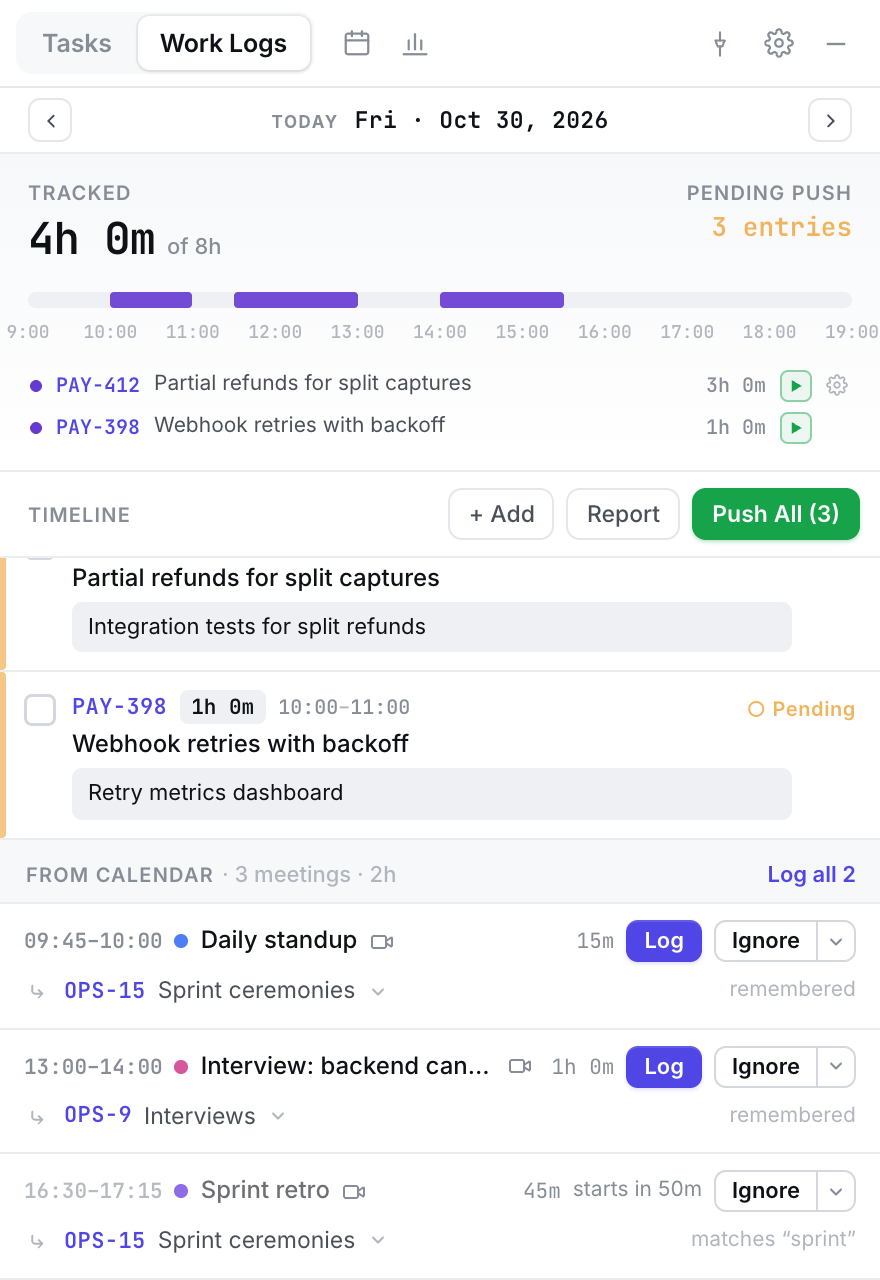
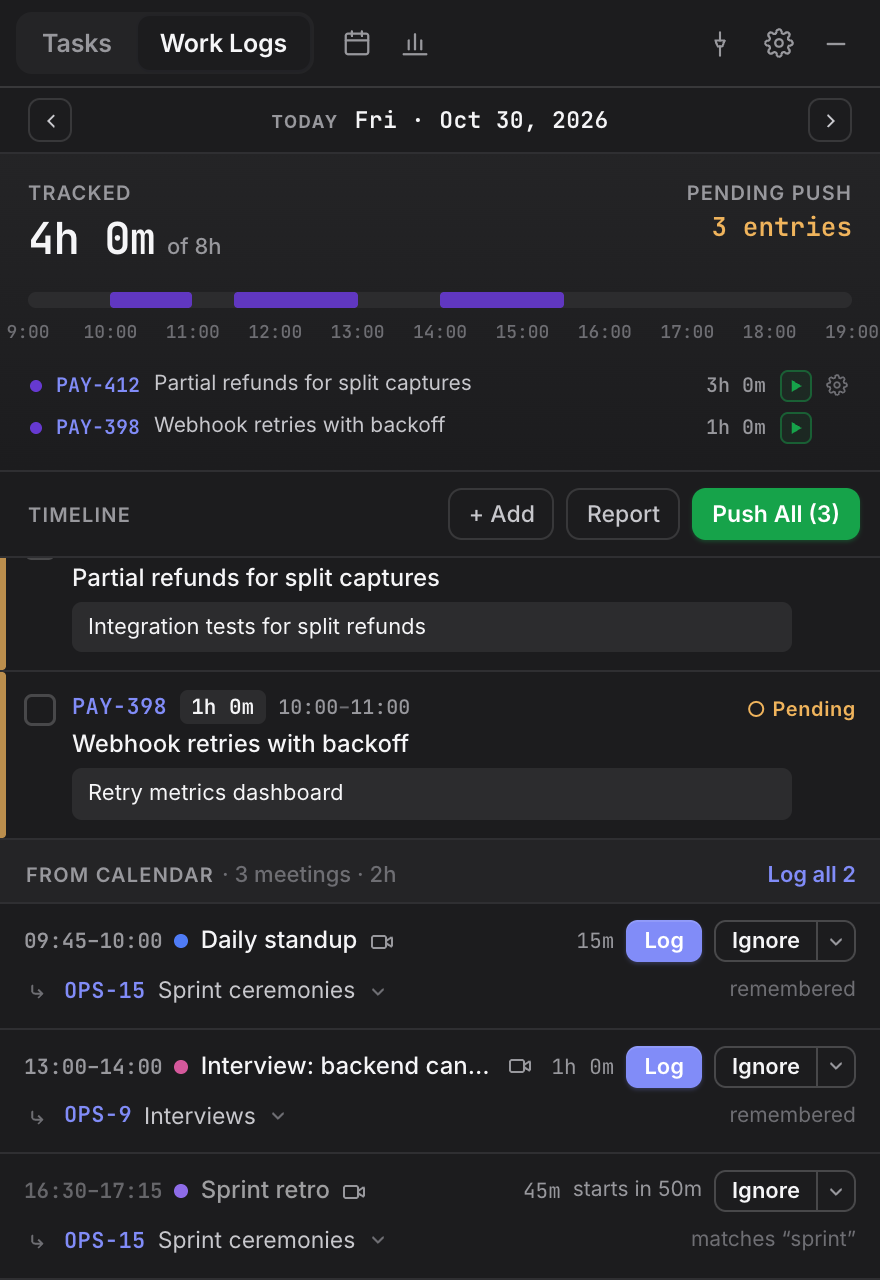
What shows up. You see meetings from the last 30 days and the next 7. In the calendar window they sit on the timeline as dashed blocks next to your worklogs. On the Work Logs tab in the menu bar popover, the day ends with a From calendar section: a row per meeting with its time, title, the issue the app proposes, and Log and Ignore buttons.
Logging. Click Log and the meeting becomes a worklog with its start time and duration, and its title becomes the comment. It syncs to Jira like any other entry. Log all on the Work Logs tab takes the whole day in one click, and Log meetings in the calendar window does the same for the week in view, with a list to check first.
How the issue gets picked
The app checks four sources in order and writes the reason under the issue: “key in the title”, “remembered”, “matches” with the word it matched on, or “default issue”.
- An issue key in the meeting.
PAY-412 sync with financegoes to PAY-412. The key has to belong to a project the app has seen in your issues or worklogs, so a strayCOVID-19in a title does not become a ticket. - A meeting you already decided. Pick an issue for “Daily standup” once, and every later occurrence of that series gets it. Meetings that are not a series but share a title (after dates, weekdays and words like “weekly” or “call” are stripped) are matched by title the same way.
- Keywords. The title and the first lines of the description are compared with the keys, summaries, parent summaries and labels of the issues the app has cached. You see up to three candidates; issues in progress or worked on in the last two weeks get a small bonus. “Design review: checkout flow” finds the checkout story with no key in the invite.
- A default issue for meetings, if you set one in Settings. This is where the shared ceremonies issue goes.
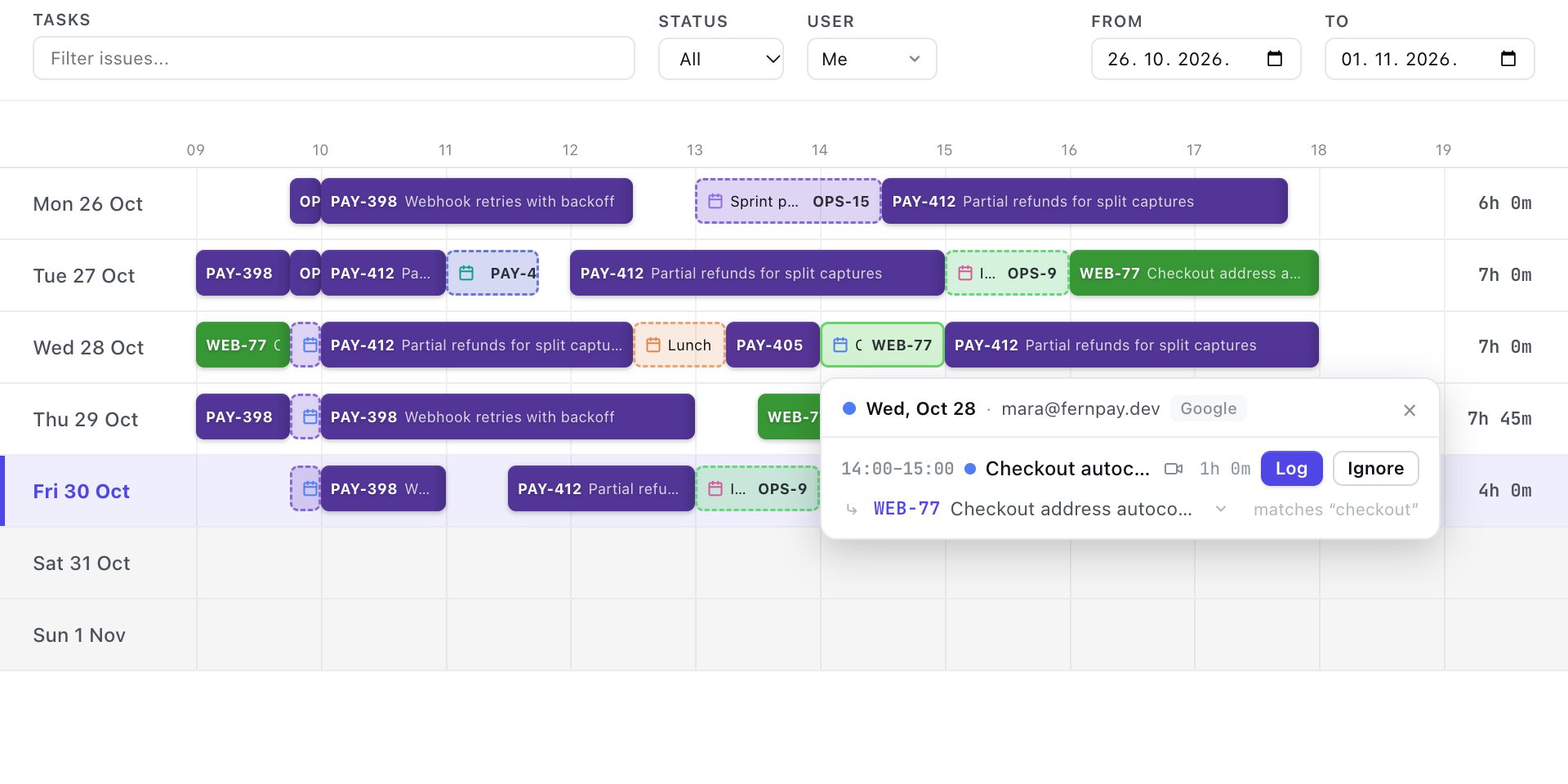
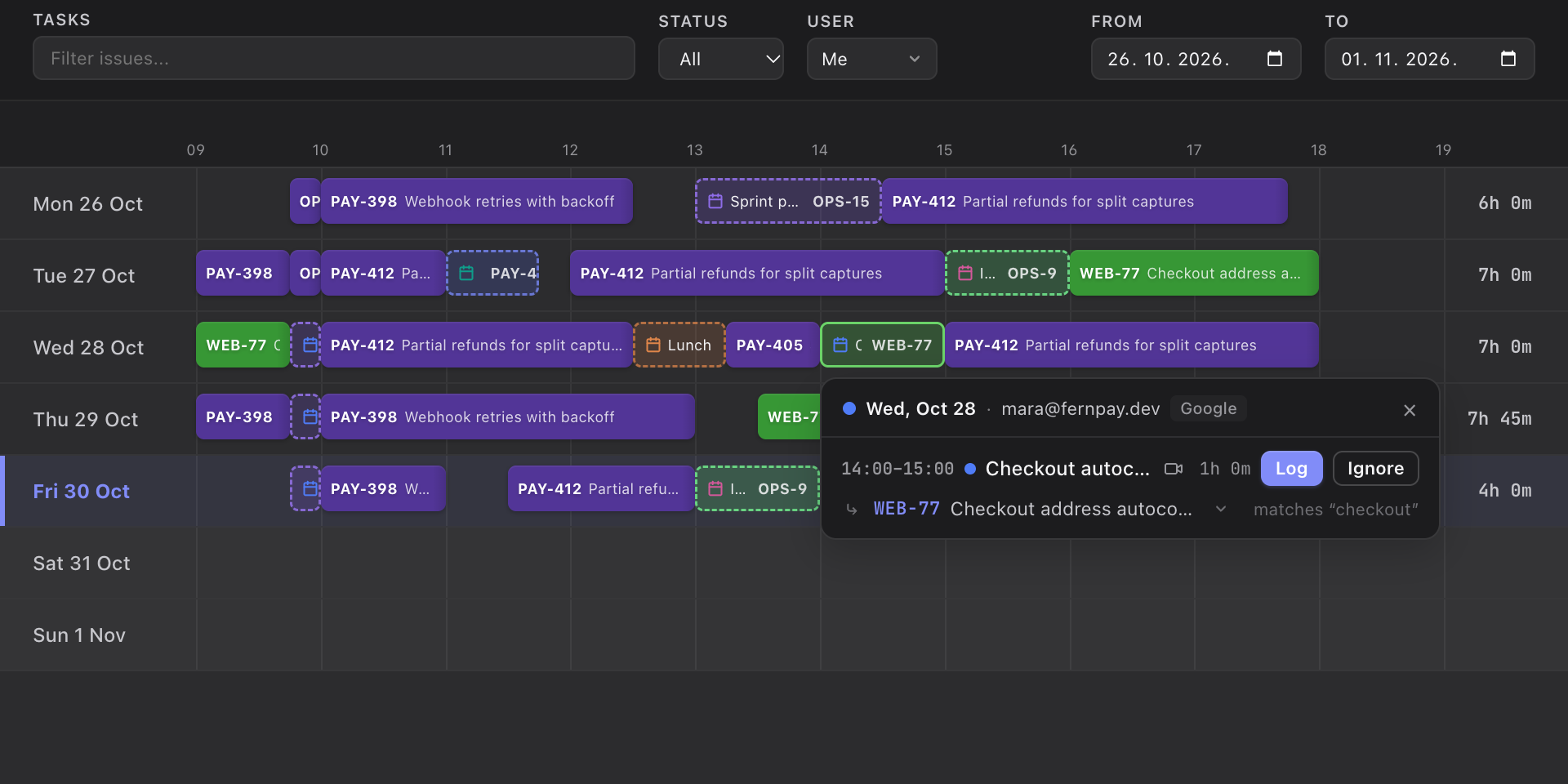
Nothing is logged until you click Log. If the proposed issue is wrong, search for the right one and the app remembers the correction in place of the old rule. Ignore hides a meeting, Always ignore this series hides the series, and both have an Undo. The Calendar tab in Settings keeps the Remembered meetings and Ignored meetings lists with Restore next to each entry.
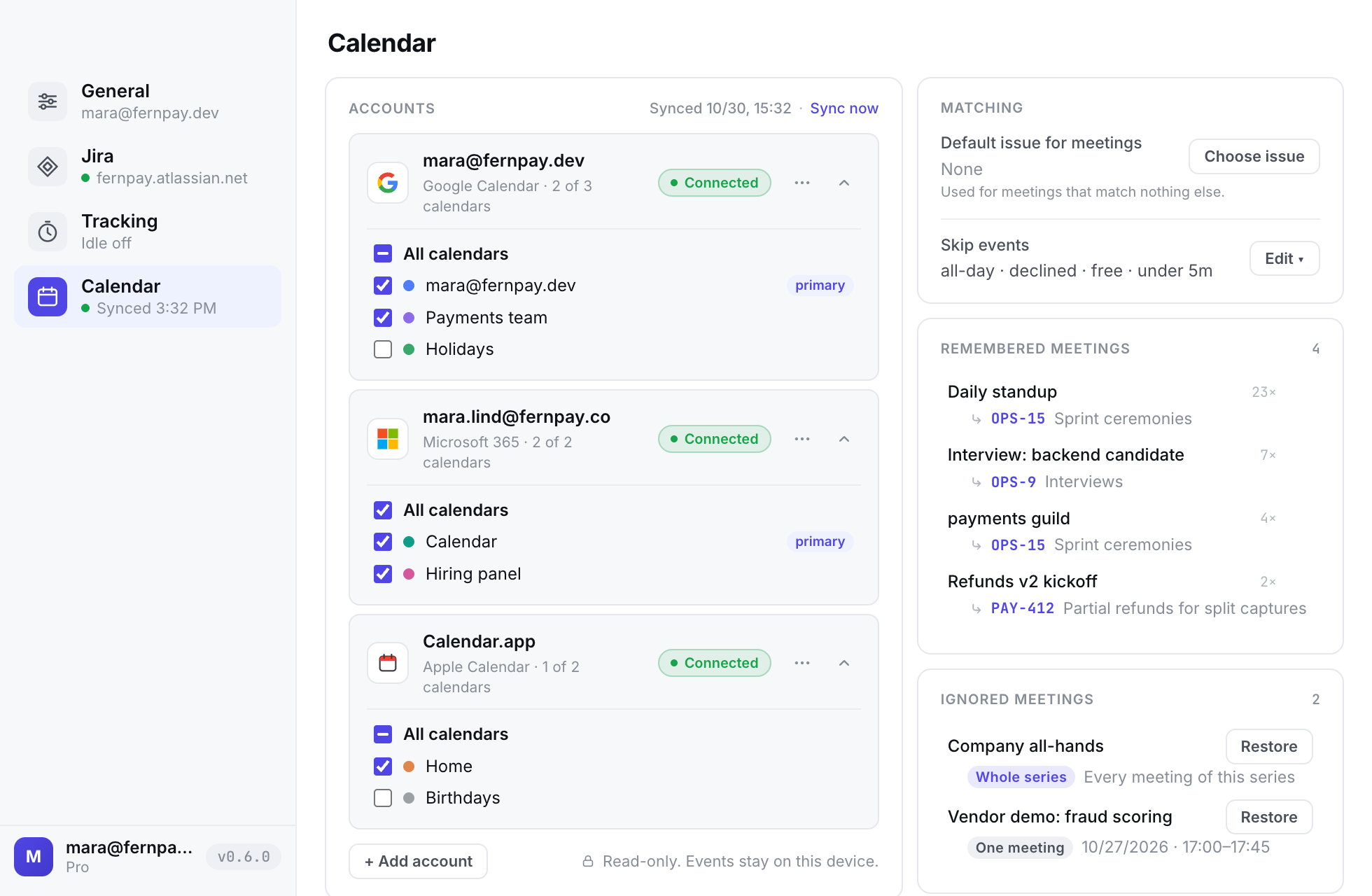
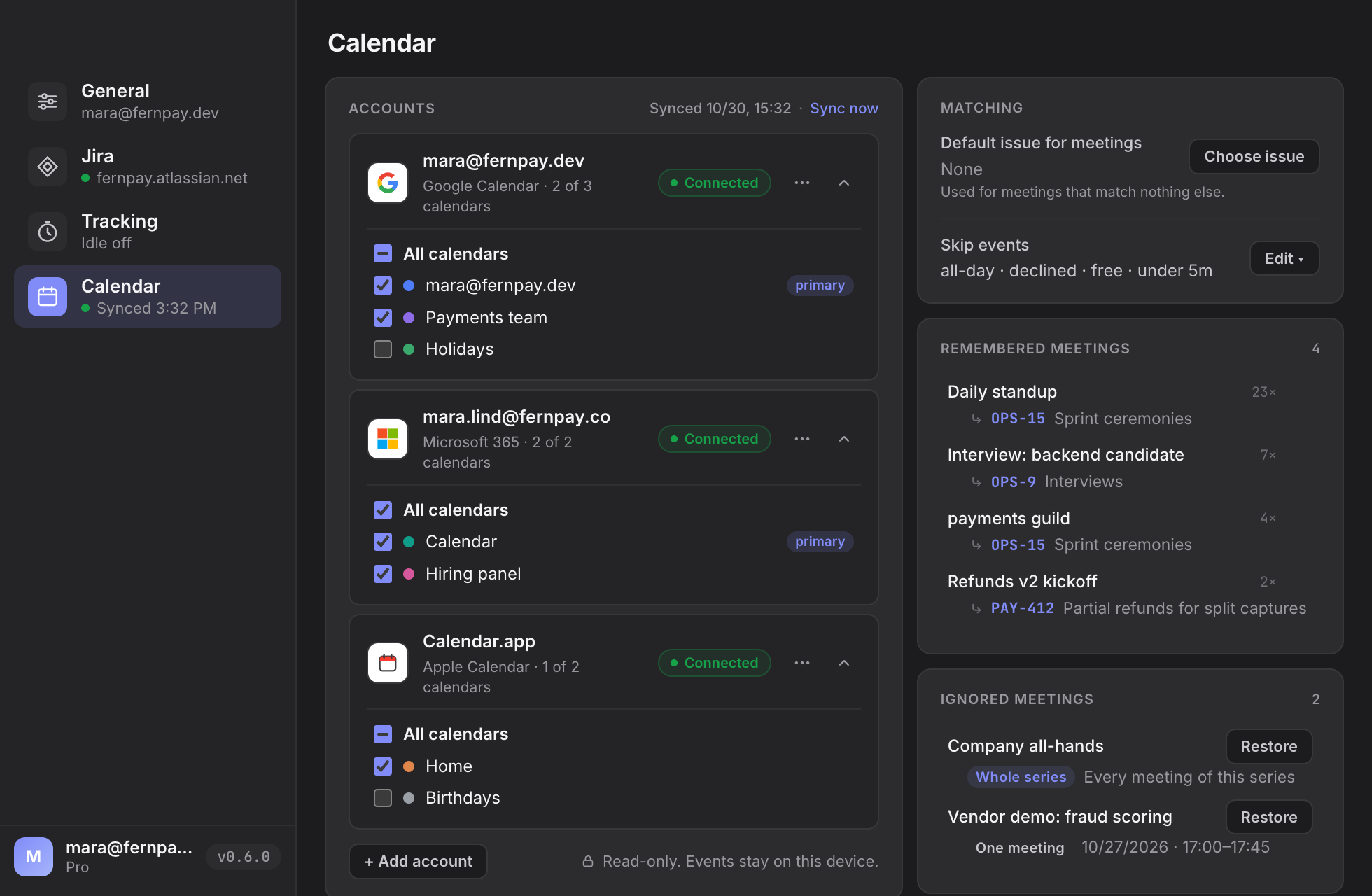
By default the app skips all-day events, meetings you declined, slots marked as free, cancelled events and anything under five minutes; tentative meetings stay. Each is a switch in the same tab. Events marked private or confidential are never downloaded.
Compared with the other calendar routes
Other tools also log meetings from a calendar; they differ in how the issue gets chosen. As of November 2026, per each vendor’s documentation:
| Calendars | How the issue is chosen | Remembers your choice | |
|---|---|---|---|
| Tempo Timesheets | Google, Microsoft 365 | Issue key in the event title; otherwise you pick | Not documented |
| Clockwork | Google, Outlook (Pro) | You pick the issue for each event | No |
| Toggl Track | Google, Outlook | Creates time entries, not worklogs; Jira only via the browser extension | n/a |
| Marketplace one-offs | Mostly Google only | You pick; several are unmaintained | No |
| Planim Time | Google, Microsoft 365, Apple Calendar | Key, remembered series or title, keywords, default issue | Yes |
Clockify and Everhour have calendar panels inside their own apps, but nothing that turns a calendar event into a Jira worklog. For the wider Planim Time vs Tempo question, see the Tempo comparison.
What leaves your machine
Event data goes from Google or Microsoft straight to your computer, and Apple Calendar is read locally. Our server only brokers the sign-in: it exchanges the code for tokens, keeps them encrypted until the app collects them (ten minutes at most), then deletes them. It never sees an event title, and attendee lists are not stored even on your machine. The only thing about a meeting that leaves your machine is the worklog you log, and that goes to Jira. Details are in the privacy policy.