Jira time tracking without admin rights: what actually works
Track time in Jira Cloud without a Marketplace install. Compare native worklogs, OAuth, and API-token tools, including the permissions each path needs.
On this page
You can track time in Jira Cloud without being a Jira administrator, but only inside the access your account already has. The simplest path is Jira’s own Log work action. A desktop timer or script can also avoid a Marketplace installation, using OAuth or an API token, but neither can bypass Jira permissions or an organization security policy.
That distinction matters. “No admin” is often used to describe four different gates, and only one of them is the Marketplace install screen.
The four gates hidden inside “no admin”
Before comparing tools, separate the decisions an administrator might control:
- Account access. An administrator must invite you to the Jira site in the first place.
- Worklog permissions. Your account needs Browse spaces and Work on work items for the relevant space. Jira still uses “issue” in many URLs and APIs, while its current permission documentation says “work item”.
- Connected-app approval. An OAuth app can request consent without being installed as a Jira time-tracking provider, but the site can restrict user-installed apps or require explicit authorization.
- API-token policy. An API token avoids the connected-app consent flow. Organization authentication policy can still block users from creating or using tokens.
The first two gates apply to every method that writes a native Jira worklog. The last two depend on how the tracker authenticates.
| Method | Marketplace install | Separate admin gate | Uses your Jira permissions | Where the hours land |
|---|---|---|---|---|
| Jira Log work dialog | No | Only if your permissions or field setup are missing | Yes | Jira worklog |
| Desktop tracker with OAuth | No | Site authorization can be required | Yes | Depends on the tracker |
| Desktop tracker or script with API token | No | Organization can block user API tokens | Yes | Depends on the tracker |
| Marketplace time-tracking app | Yes | Admin installs and configures the app | Yes, plus app scopes | Jira and/or vendor storage |
| Local stopwatch with manual entry later | No | None until you enter the worklog | Not while tracking | Local first, Jira after manual entry |
There is no legitimate sixth option that quietly grants itself more Jira access than the user has.
Option 1: use Jira’s native worklog
If you only need to enter time once or twice a day, start here. Open an issue, choose Log work, enter the duration and start date, then save. Our guide to logging work in Jira covers the fields and estimate side effects.
According to Atlassian’s time tracking permissions, logging time requires Browse spaces and Work on work items. Editing and deleting are split again:
- Edit own worklogs
- Delete own worklogs
- Edit all worklogs
- Delete all worklogs
Most engineers only need the two “own” permissions. A timer does not need permission to edit everyone else’s hours just because it has a team view.
If Log work is missing, check the issue itself before shopping for another tool. Jira Cloud time tracking is always enabled, but Atlassian lets company-managed spaces hide the Time tracking field through field configuration and team-managed spaces omit it from a work type. The current configuration guide documents both controls.
This gives you a useful diagnostic: if a one-minute native worklog fails, a tracker authenticated as the same user should fail too. Fix the Jira permission or field first.
Option 2: use a desktop tracker with Atlassian OAuth
OAuth is the cleanest sign-in experience when the site allows it. You click Sign in with Atlassian, review the scopes in Atlassian’s browser flow, choose the site, and approve the connection. There is no Marketplace time-tracking provider to install into Jira.
The important limit is in Atlassian’s own OAuth documentation: app scopes never override the permissions of the user the app acts for. A broad scope cannot turn an engineer into a Jira administrator or grant access to a private project.
OAuth is also not a promise of zero admin contact. Atlassian’s connected-app settings allow site and organization admins to block user-installed apps. If the authorization flow says Your site admin must authorize this app, Atlassian’s current Cloud guidance says the user cannot self-approve it.
The accurate product claim is therefore no Marketplace installation, not “an admin can never be involved”. On a permissive site, the user can complete consent. On a restricted site, the first authorization becomes a small approval request instead of a tenant-wide plugin rollout.
That is the path Planim Time takes: Sign in with Atlassian, pick the site, and worklogs go onto issues as you; nothing is installed in Jira.
Option 3: use an API-token tool
An Atlassian API token authenticates a tool as your account. It does not install an app and does not go through OAuth connected-app consent. For a desktop app that supports it, the usual inputs are the Jira site URL, your Atlassian email, and a token created in your account security settings.
This is the practical fallback when OAuth app approval is unavailable, but it has two hard limits:
- The token still has exactly your Jira access. It cannot create a worklog where your account lacks Work on work items.
- Atlassian lets organization admins block user API tokens through authentication policy. If that policy is on, changing trackers will not help.
Treat a token like a password that is only for API calls. Give each tool its own token when possible, set an expiry that matches the evaluation, and revoke the token when you stop using the tool. For a deeper review of local keychains, vendor databases, OAuth brokers, and revocation, see where Jira time trackers store credentials.
Do not solve an approval delay by borrowing an administrator’s token. That gives the tracker the administrator’s data access and makes every worklog look like it came through the wrong identity boundary.
Where Planim Time fits
Planim Time is a native desktop timer for macOS, Windows, and Linux. It does not install a time-tracking provider into the Jira site. Sign in with Atlassian is the default; a locally stored API-token path remains available when the organization’s policy permits it.
Long-lived credentials live in the operating system’s credential vault. The OAuth flow uses a short-lived broker for code exchange and refresh, but the backend is not the long-term credential store. With the API-token fallback, the app talks directly to Jira and the token stays on the device.
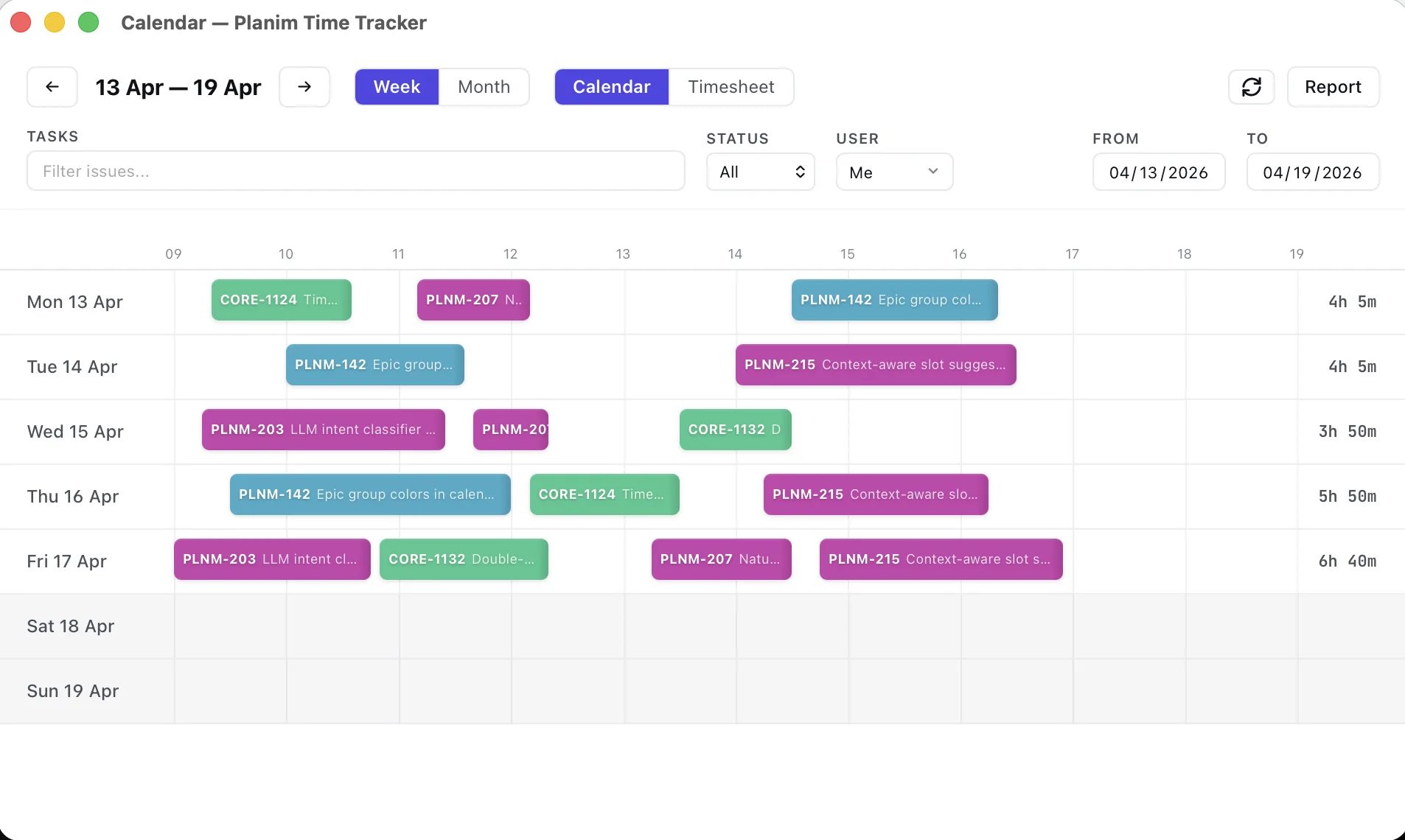
The Free plan includes the timer, editing, pulling existing Jira worklogs, and one-click Push All. Pro adds automatic push when a timer stops, the calendar, idle detection, automations, reports, and CSV export. That split is useful during an approval check: you can verify real Jira read/write access without starting a paid rollout.
The fastest test is deliberately small:
- Create a one-minute native worklog in Jira.
- Connect Planim Time with OAuth. If the site blocks it, confirm whether the API-token fallback is allowed.
- Track one minute against the same issue and click Push All.
- Confirm the worklog in Jira.
- Edit that entry in Jira and refresh Planim Time to verify the two-way worklog path.
We use this sequence when debugging onboarding because it isolates permissions from authentication. If step one fails, the problem is Jira access. If step one works and OAuth stops at site authorization, the problem is connected-app policy. If API-token authentication also fails, check the organization’s token policy before changing anything in the tracker.
What to send an admin when a gate is closed
“The tracker does not work” is difficult to approve and difficult to diagnose. Send the smallest exact request:
I can browse project ABC but cannot create a native worklog on ABC-123. Please check Browse spaces and Work on work items for my role. I only need to manage my own worklogs.
For a connected-app gate:
Jira’s authorization page says the site admin must authorize Planim Time. It is an OAuth desktop client, not a Marketplace time-tracking provider. Please review the requested scopes in Connected apps for this site.
For an API-token gate:
Our Atlassian authentication policy appears to block user API tokens. Is API access intentionally disabled for my policy, or is there an approved authentication route for a desktop Jira client?
Those requests keep the scope visible. They also give security or IT a clean “no” if the organization deliberately forbids third-party access.
Pick the least complicated path that meets the job
Use Jira’s native dialog if manual entry is tolerable. Use an OAuth desktop tracker when you want a live timer and the site allows the connected app. Use an API-token fallback when the product supports it and organization policy allows tokens. If both external paths are blocked, track locally and enter the worklog manually, or ask for an approved tool.
The boundary is simple: no Marketplace install is achievable; bypassing permissions and security policy is not. A good Jira time tracker works with the access you already have and makes any missing gate obvious instead of pretending it does not exist.